
Make sure that you are added as a user under the User Management tab (to the left) so you are able to test core capabilities (Phishing and Automations).
1. Analytics
When you first log into Moxso as an admin into your demo platform, you will be directed to the Analytics overview page.
This section of the platform is where you will be given the highlights of how your organization is handling risk through Moxso. Currently it is empty as there isn’t data yet, however see the screenshot below representing a dashboard with data.
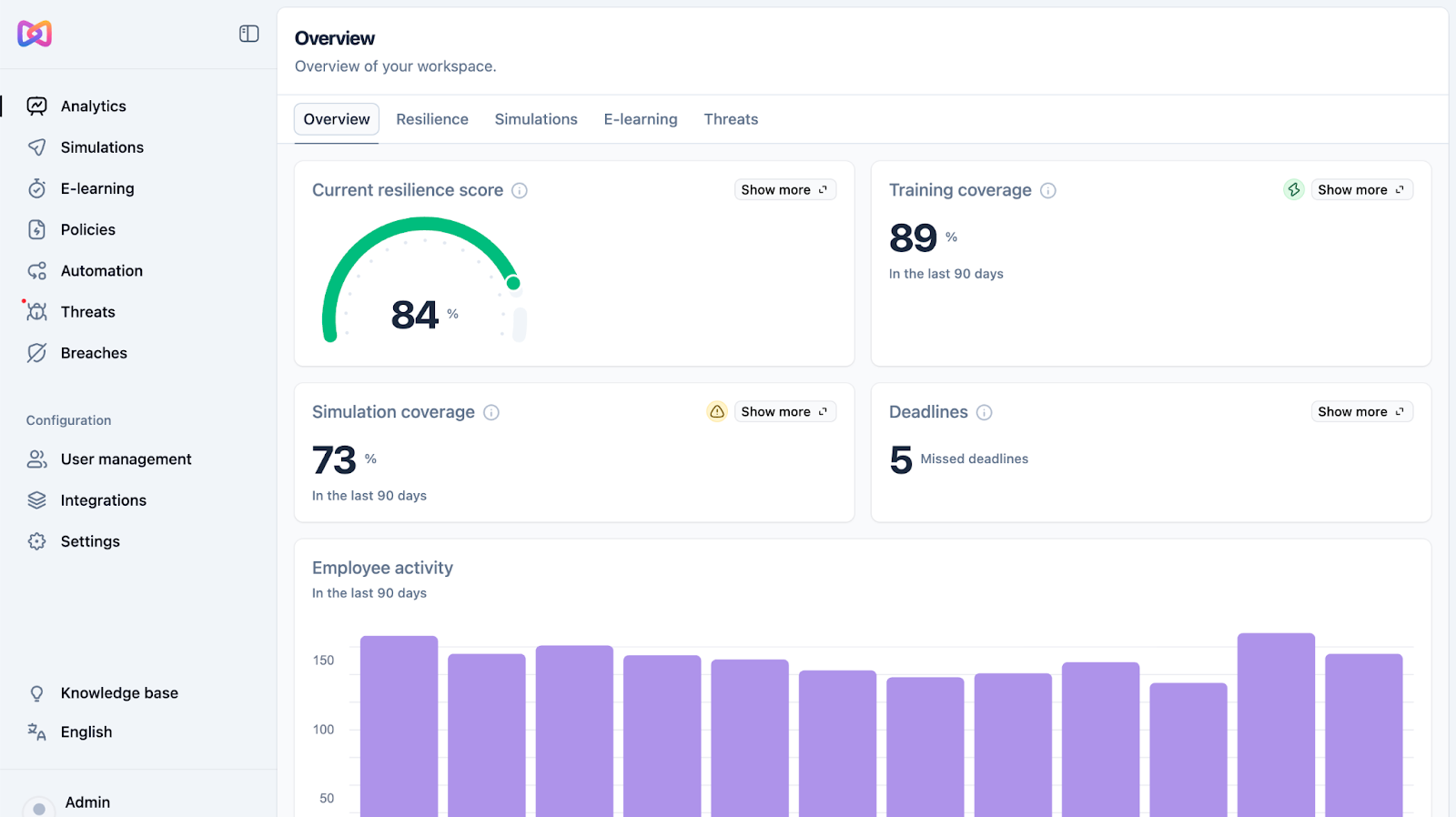
Have a look through different tabs to see the data points that will populate as data comes in from the different features.
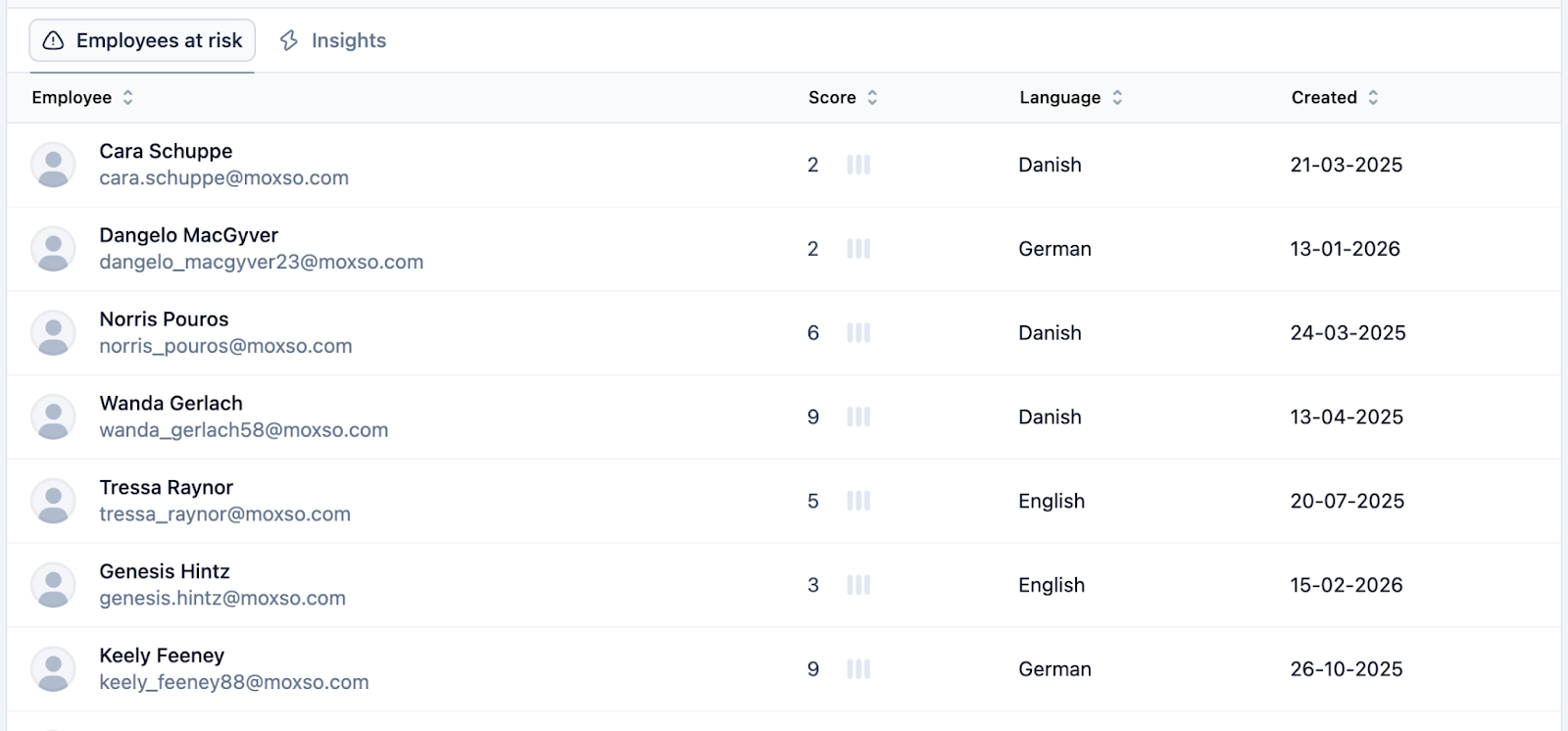
In particular, we want to underline the Employees at risk section under the Resilience tab that will save you time by listing your employees with the lowest Resilience Score and that need attention.
2. Phishing Simulations
Travelling to the left-side Simulations tab, you will be able to create a phishing simulation campaign and see what that process looks like.
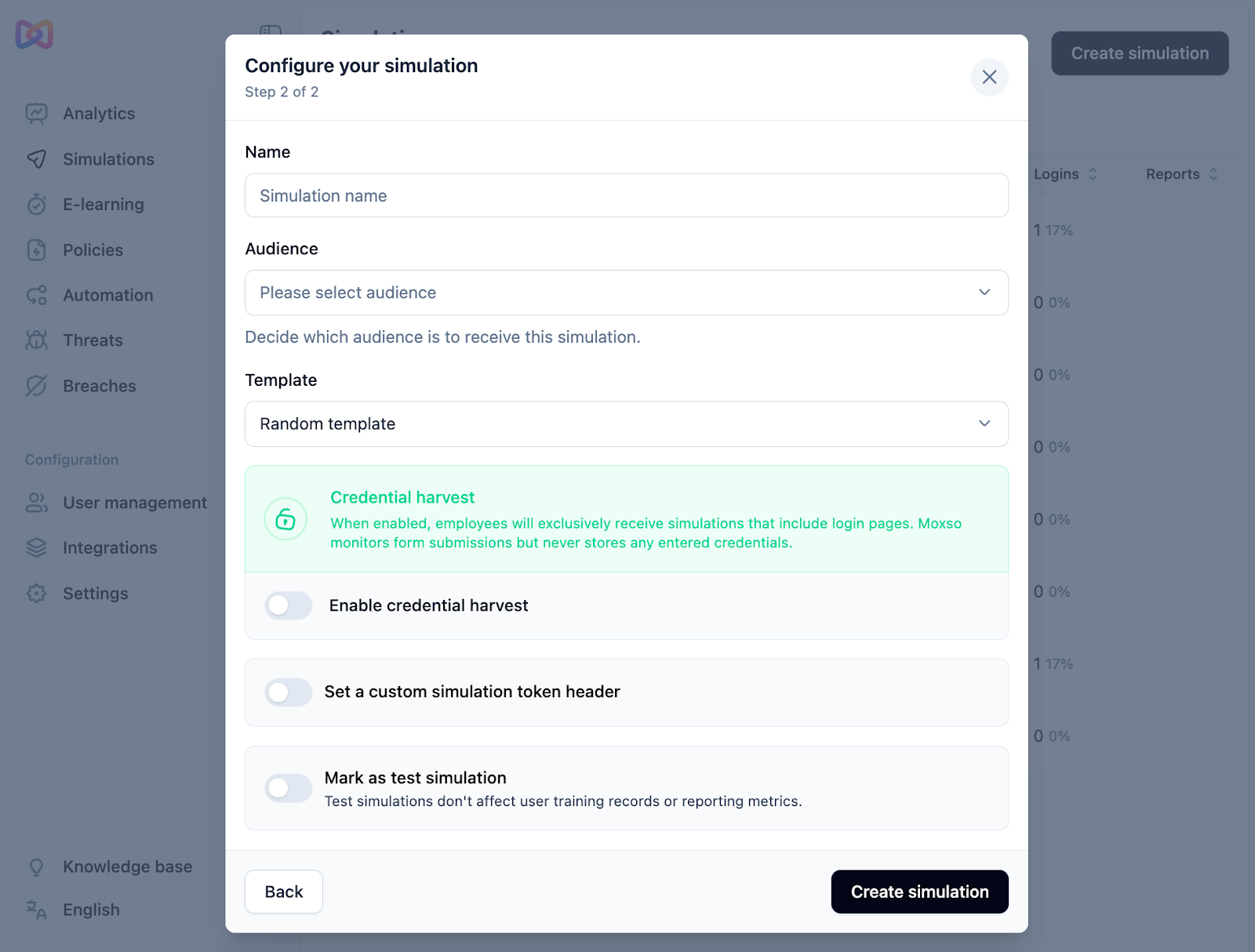
Follow the steps and select Create simulation. This will create a draft and from there, you can click Send test to see what our simulation templates look like.
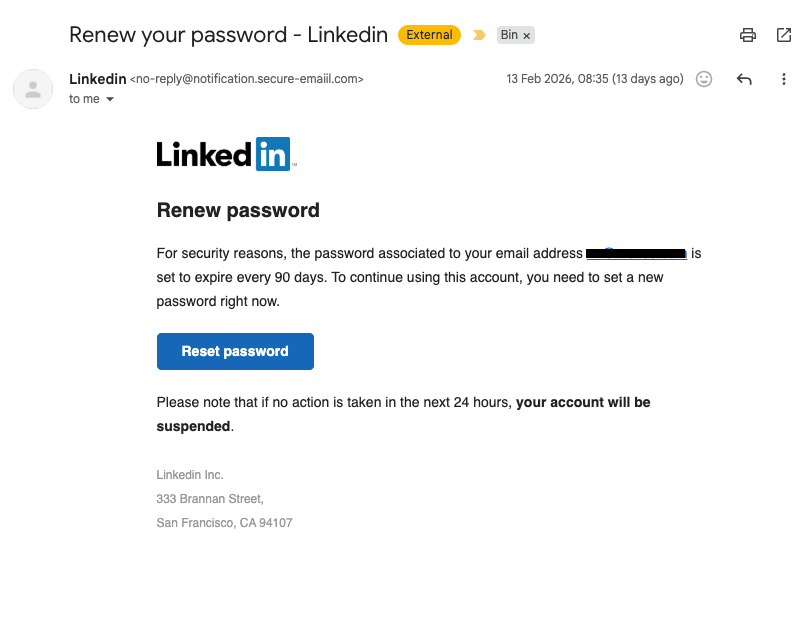
Example of one of our many Simulation templates
Once a Simulation is actually launched, it will send a first round of emails to the targeted employees but from then on it will follow our algorithm logic, adapting individual send cadences to the employees risk levels.
The Activity tab will populate and you will be able to see which employees have received, opened, clicked into or even filled in details (if you enabled Credential Harvesting).
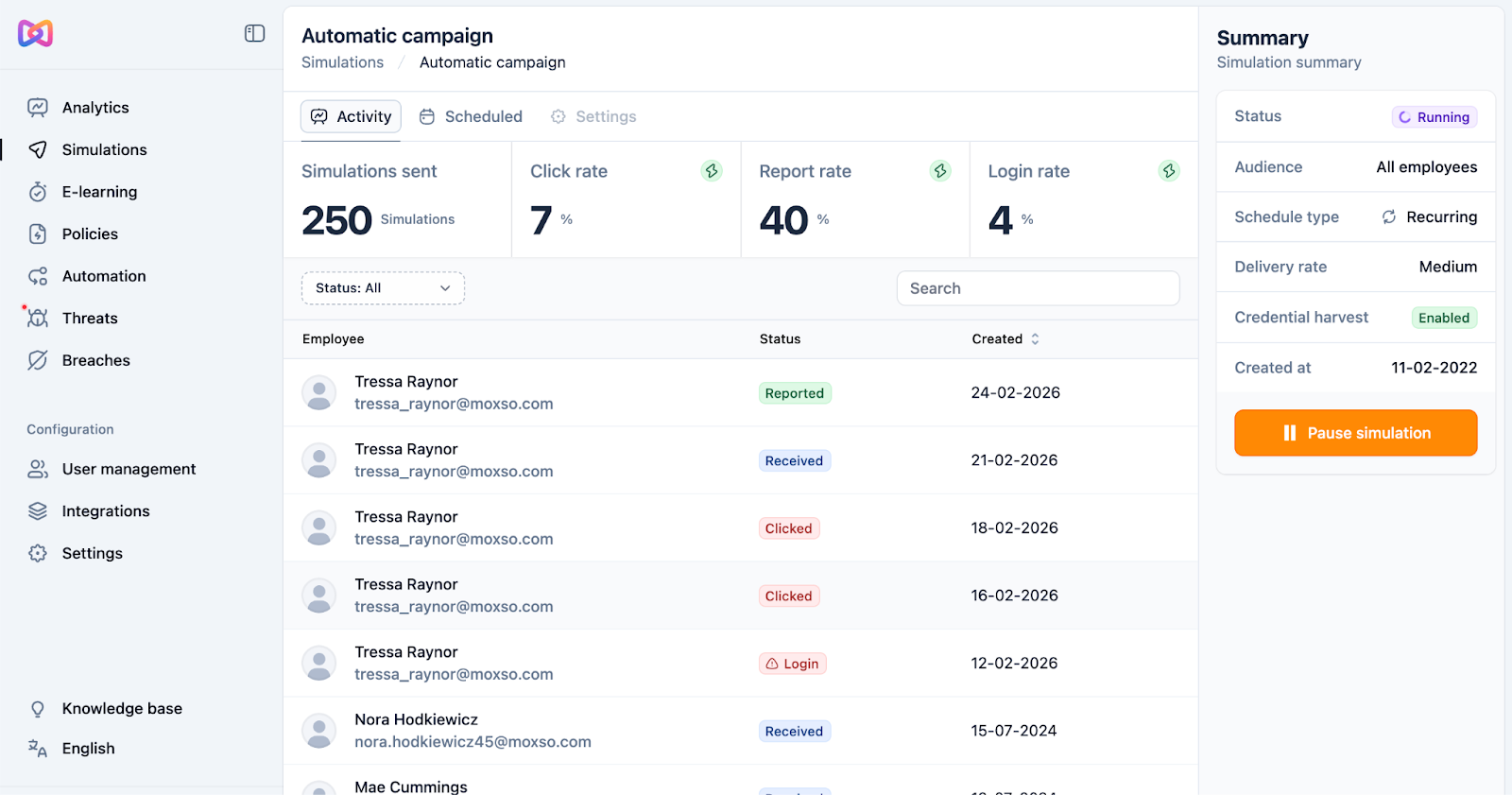
3. Training Automation
Click onto the right-side tab Automation to access our Training creation tool and try out the steps to make your own sequence.
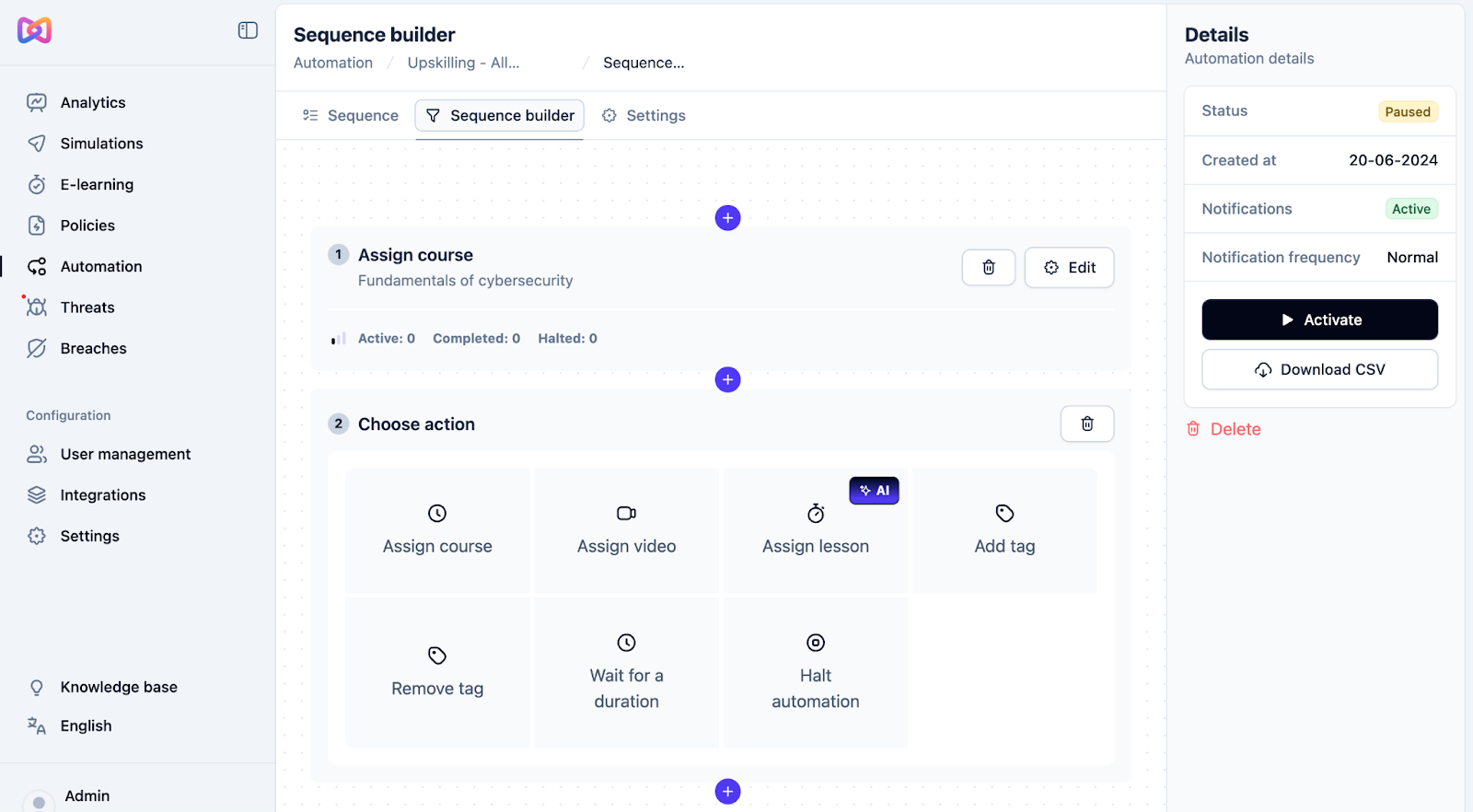
Once a sequence is set up, it will run automatically and send out our training videos to your employees exactly according to your preferences.
You can also check out our wide variety of Training videos and Courses by navigating to the left-side tab E-learning.
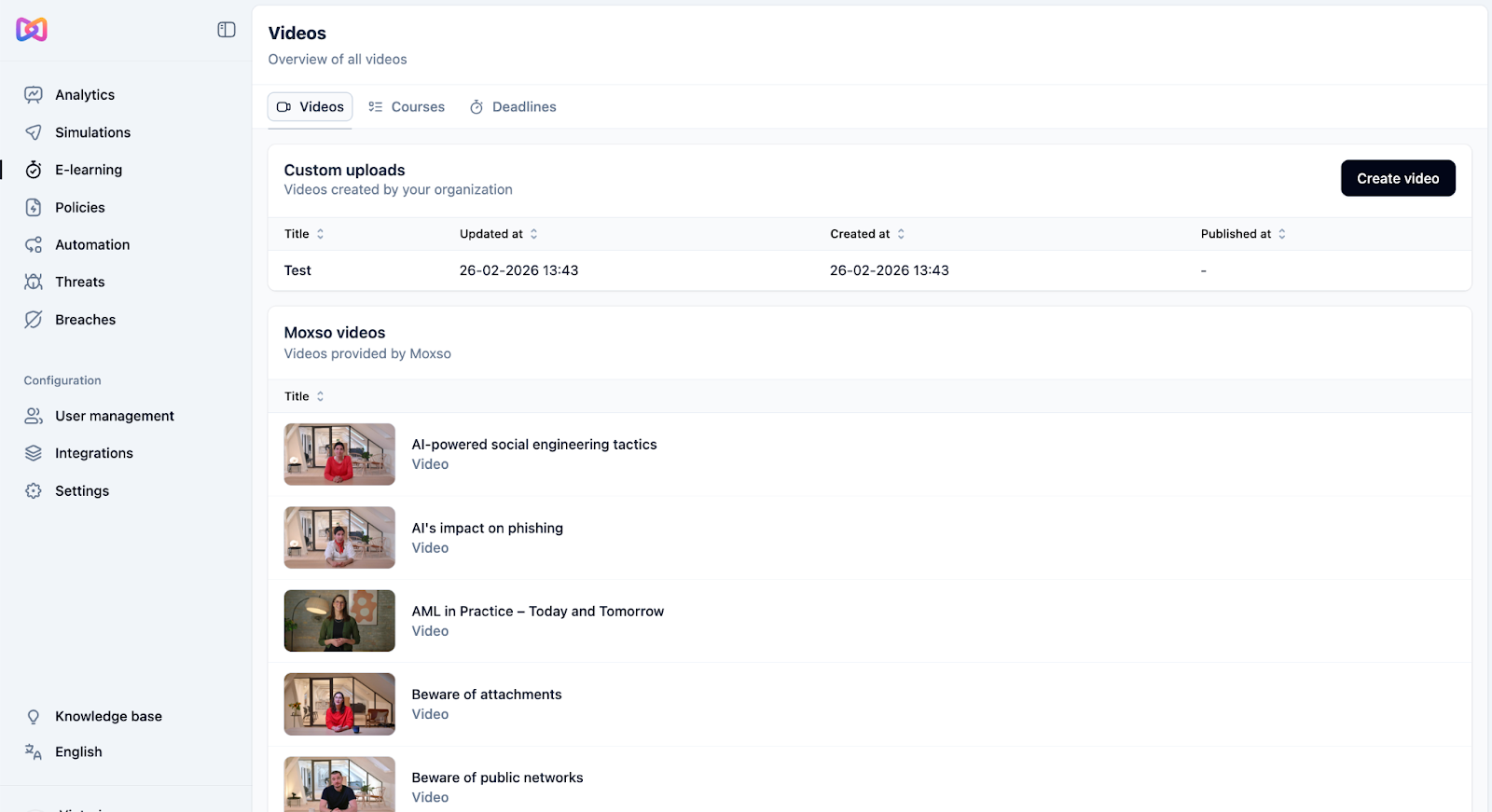
4. Threat Management
Click into the Threats tab on the left-side to access our threat management tool.
As with the Analytics, currently your page will not display threats but see the screenshot below to visualise it populated.
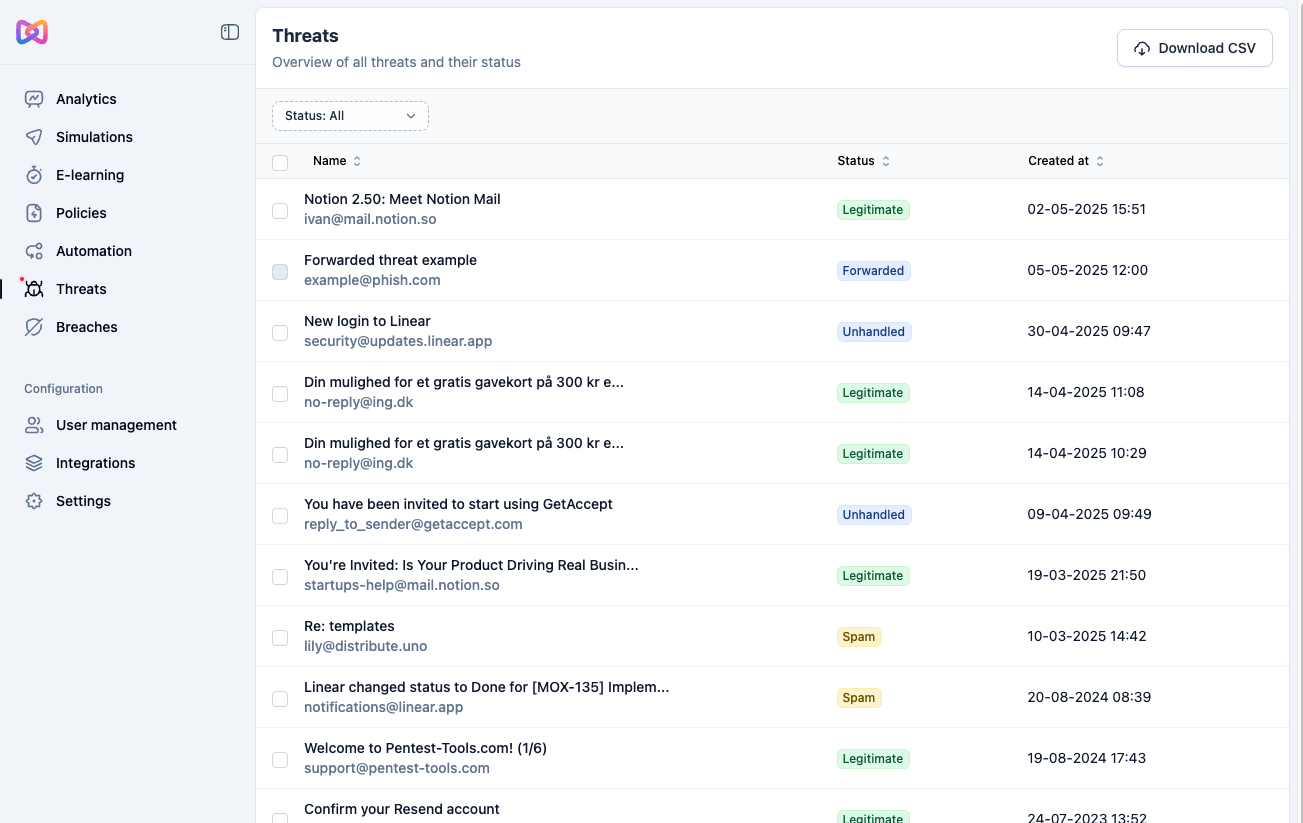
When an employee wants to report suspicious emails as phishing, they click on the Moxso Report Button directly in their inbox.
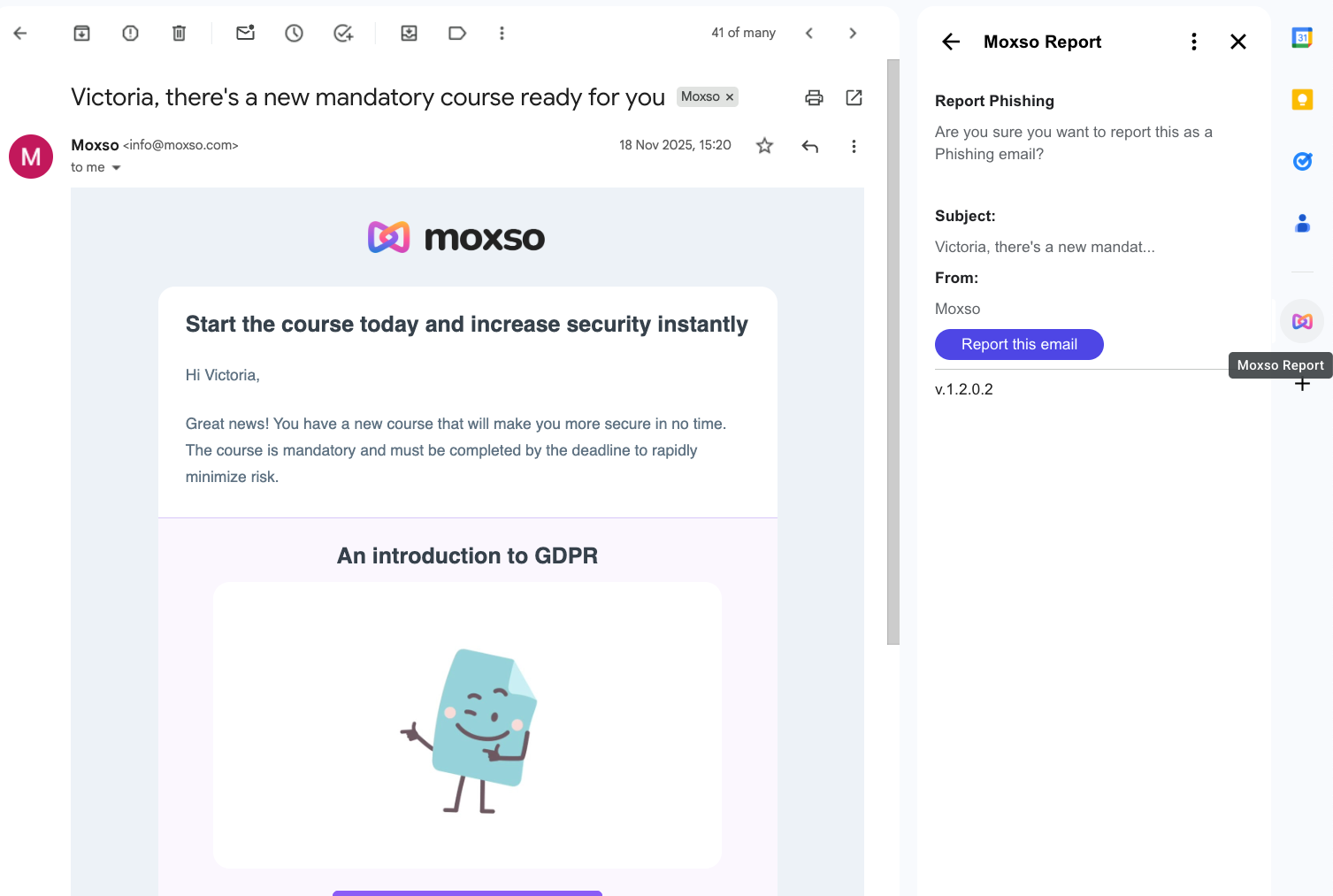
The email is then forwarded to your IT department and appears in the Threat Management tab.
Moxso’s Threat Management conducts an automatic analysis of each reported threat. Based on this comprehensive analysis, admin or IT should be able to tell whether or not the reported email is a phishing attempt.
Do not hesitate to reach out to your Moxso contact if you have any questions!
We hope you enjoy your trial!
Would you like to read more about the tool? See some of our knowledge base articles: