
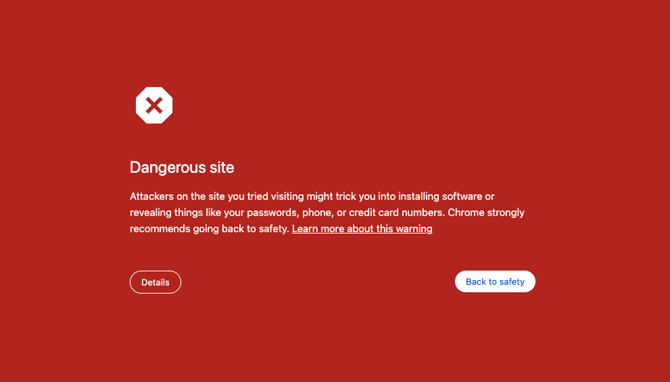
Google Chrome's Safe Browsing may occasionally flag Moxso simulation domains as deceptive or involved in social engineering. When this happens, users see a warning page when they click a simulation link, which interrupts the simulation flow.
This only applies to credential harvesting simulations that use a landing page. Simulations without landing pages don't trigger Safe Browsing warnings. You only need this configuration if you're running spearphishing simulations.
What you'll need
- The domain to allowlist: authweb.co
- Administrative access to one of the following, depending on your environment:
- Entra ID or Intune (Windows 11)
- Intune (macOS)
- Google Admin Console (managed Chrome)
Desktop
Windows 11 — via Entra ID or Intune
- Open the Entra ID Portal and go to Devices > Windows (or open the Intune Portal and go to Devices > Windows).
- Click Create > New Policy.
- Set Platform to Windows 10 and later and Profile type to Settings catalog.
- Name the profile (for example, Chrome Safe Browsing Allowlist — Moxso) and click Next.
- Under Configuration settings, click Add settings.
- Search for Safe Browsing and select Google Chrome Safe Browsing settings.
- Enable Configure the list of domains on which Safe Browsing will not trigger warnings.
- Add authweb.co and click Next.
- Complete Scope tags and Assignments, then review and create the profile.
macOS — via Intune
- Open the Intune Portal and go to Devices > Mac.
- Click Create > New Policy.
- Set Template to Custom.
- Name the profile (for example, Chrome Safe Browsing Allowlist — Moxso) and upload a ChromeSafeBrowsingAllowlist.xml file containing authweb.co.
- Assign the profile to the appropriate group, then review and create it.
Managed Chrome — via Google Admin Console
- Sign in to the Google Admin Console at admin.google.com.
- Go to Device Management > Chrome > Settings (the exact path may vary depending on your console version).
- Find the Safe Browsing policy section. It may be labelled Safe Browsing Allowlist, URL Exemptions, or Whitelist.
- Add authweb.co to the allowlist.
- Save and allow up to one hour for the policy to propagate.
Unmanaged devices
Chrome doesn't offer a per-domain Safe Browsing allowlist for individual users. For unmanaged devices, the only option is adjusting the overall Safe Browsing level in Settings > Privacy and security > Security, which isn't recommended at scale. If you're running simulations across your organisation, a managed policy is the right approach.
Mobile devices
The steps below reflect standard Chrome policy management guidance. Your exact options may vary depending on your EMM provider and device management setup.
Android — via Chrome Browser Cloud Management
Chrome on Android supports the SafeBrowsingAllowlistDomains policy. You can push it using Chrome Browser Cloud Management.
- Sign in to the Google Admin Console at admin.google.com.
- Go to Devices > Chrome > Settings > Users & browsers.
- Find the Safe Browsing settings and add
authweb.coto the allowlist. - Save and allow time for the policy to apply to enrolled Android devices.
If you're using an EMM provider such as Intune, you can also push the allowlist as a managed app configuration for the Chrome app on Android.
Chrome on iOS
Chrome on iOS uses Apple's WebKit engine rather than Google's Safe Browsing. The SafeBrowsingAllowlistDomains policy doesn't apply -- configuring it here has no effect on iPhones or iPads.
If employees see a warning when clicking simulation links on iOS, it comes from Apple's system-level "Fraudulent Website Warning" feature, not from Chrome. You can't suppress it through a Chrome policy. Configuration requires an Apple MDM setup, which works the same way as Safari on iOS.
Apple system-level warnings (Safari and Chrome on iOS)
Both Safari and Chrome on iOS use Apple's built-in "Fraudulent Website Warning" feature rather than a browser-specific Safe Browsing implementation. This means you can't configure an allowlist through a browser policy -- the setting is managed at the system level via mobile device management (MDM) software, such as Jamf or Intune.
Note that the Apple MDM option is a system-wide toggle, not a per-domain allowlist. Disabling it turns off fraudulent website warnings across all browsing, not just for authweb.co.
Verify the configuration
- On a test device, open a simulation link that uses authweb.co.
- Confirm that Chrome doesn't show a Safe Browsing warning.
- Confirm that the landing page loads correctly.