If you’re setting it up for the first time, you can navigate to Analytics > Overview > Human risk intelligence > Enable human risk intelligence to go through the essential onboarding flow. This is enough to get you set up for the launch. The flow has three steps: Training strategy, Behavior-triggered interventions, and a final review before you enable the system.
Alternatively, you can go directly to Settings > Human risk intelligence to activate HRI. This is also where you can adjust the settings you selected in the onboarding flow and find advanced optional settings. This guide focuses on that specific view and explains every available setting.
Before you begin
HRI works by analyzing employee security behavior over time before assigning training. No lessons are assigned immediately after you enable it — the system needs 24 hours to gather signals first. You can change your settings or disable HRI at any time after setup.
Training strategy settings
The Training strategy settings define how automated training is assigned and delivered.
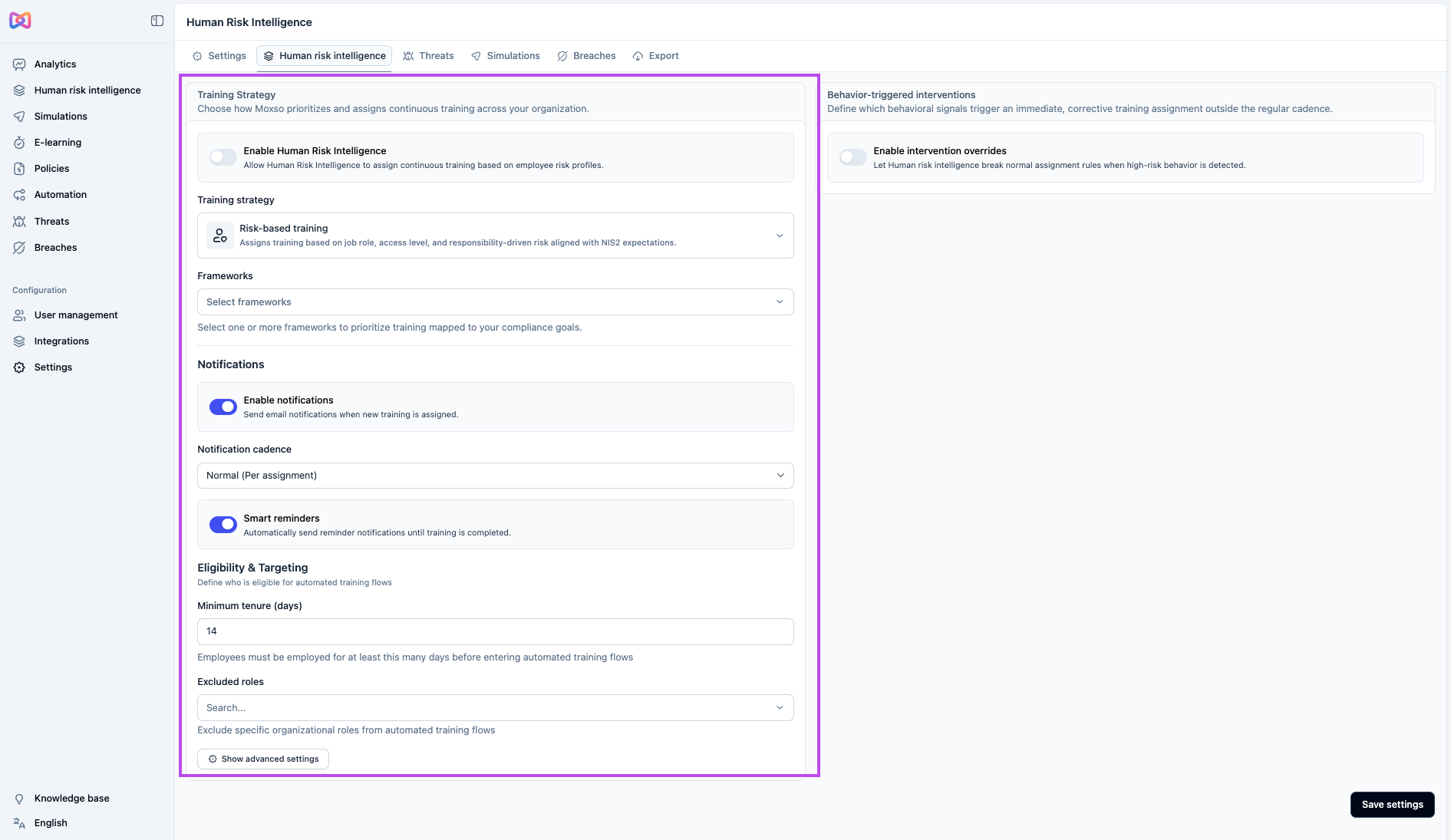
Training strategy
Select the strategy that best matches your organization's priorities. Three options are available:
- Risk-based training — assigns training based on each employee's job role, access level, and responsibility. Aligned with NIS2 expectations. Choose this if reducing individual risk is your primary goal.
- Compliance training — assigns training to meet documented requirements in ISO 27001, SOC 2, and related frameworks. Choose this if maintaining compliance coverage is your primary goal.
- Group-based training — adjusts training using behavior trends across teams and departments, without targeting individuals. Here, we don’t use individual employee roles, access levels, or responsibility. Choose this if you prefer not to profile employees individually. Please note that the resilience score is still calculated at the individual level, even when group-based training is selected.
Moxso can automatically assign organizational roles to employees based on their department and group data. This happens through the employee data enrichment setting in your workspace settings, not through the HRI configuration flow.
Settings > Workspace settings > Employee data enrichment
If this is not enabled, Moxso defaults to the Administration role. Read more about organizational roles in this article: What are organizational roles?
Frameworks
Select one or more compliance frameworks to map your training to. The available options are NIS2, ISO 27001, and SOC 2. You can combine frameworks. For example, selecting both NIS2 and ISO 27001 will align the program to cover both.
Notifications
- Enable notifications — When turned on, employees receive an email when new training is assigned. This is on by default.
- Notification cadence controls how often reminder emails are sent after a training assignment. Three options are available:
- Loose sends reminders at 28 days and 14 days before the deadline, plus a 3-days-left reminder, a last day reminder, an overdue reminder, and a missed deadline reminder. The 21-day, 7-day, and 1-day-left reminders are skipped.
- Normal sends reminders at 28 days, 21 days, 14 days, and 7 days before the deadline, plus a 3-days-left reminder, a last day reminder, an overdue reminder, and a missed deadline reminder. The 1-day-left reminder is skipped.
- Intense sends the same reminders as Normal, plus an additional 1-day-left reminder.
- Smart reminders — When turned on, Moxso automatically sends reminder emails until the employee completes the training. This is on by default.
Eligibility & Targeting
- Minimum tenure (days) — employees must have been active for at least this many days before they enter automated training flows. The default is 14 days.
- Excluded roles — use this field to exclude specific roles from automated training flows entirely.
Advanced settings
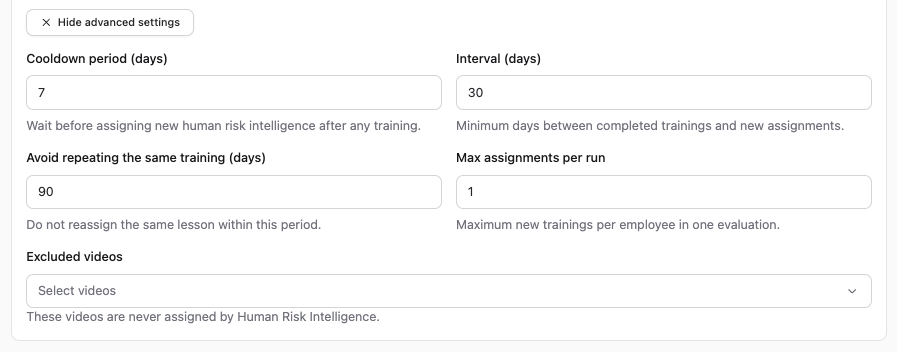
Select Show advanced settings to access additional controls.
|
Setting |
What it does |
Default |
|
Cooldown period (days) |
The minimum number of days between two training assignments. If an employee is assigned something today, they won't receive a new assignment until this period has passed, regardless of whether they completed the training. |
7 |
|
Interval (days) |
Works together with Max assignments per run to cap how much training an employee can receive or complete within a set period. For example, with an interval of 14 days and a max of 1 assignment per run, an employee can receive or complete at most 1 training item every 14 days. |
30 |
|
Avoid repeating the same training (days) |
Prevents the same lesson from being reassigned within this period |
90 |
|
Max assignments per run |
Maximum number of new training assignments per employee in one evaluation cycle |
1 |
|
Excluded videos |
Select specific videos that should never be assigned by Human Risk Intelligence, to anyone, regardless of role or risk profile. This is separate from Excluded roles: excluding a role removes an entire role from automated training flows, while excluding a video keeps everyone eligible but removes just that video from what can be assigned to anyone. |
None |
Behavior-triggered Interventions
Interventions define which behavioral signals trigger an immediate response outside the regular training cadence, such as a notification to the employee's manager or an alert to your security admins.
Toggle Enable interventions on to access the full configuration.
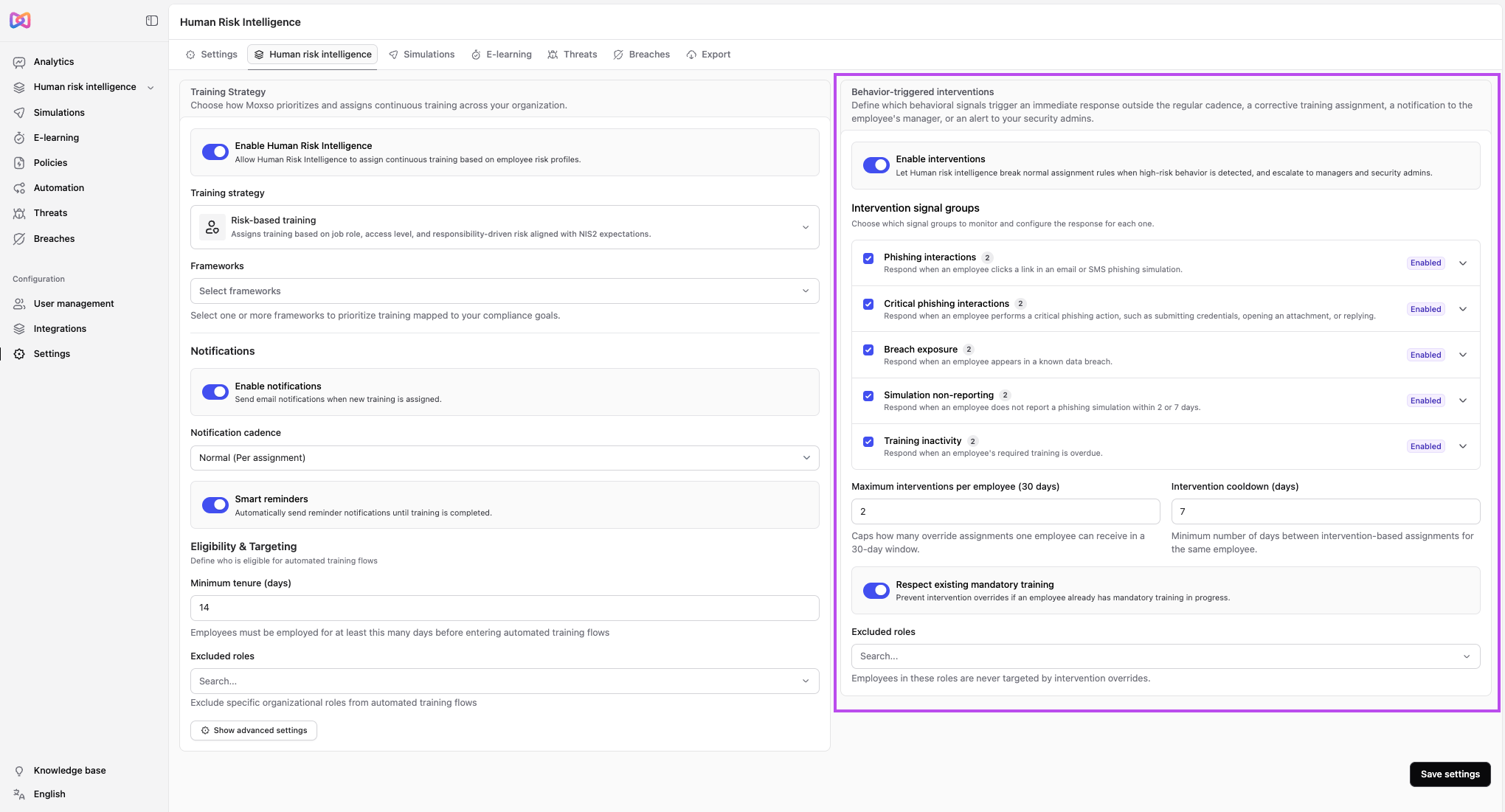
Intervention signal groups
Choose which signal groups to monitor. Each group can be turned on or off independently, and expanded to configure its own actions:
- Phishing interactions: respond when an employee clicks a link in an email or SMS phishing simulation.
- Critical phishing interactions: respond when an employee performs a critical phishing action, such as submitting credentials, opening an attachment, or replying.
- Breach exposure: respond when an employee appears in a known data breach.
- Simulation non-reporting: respond when an employee doesn't report a phishing simulation within 2 or 7 days.
- Training inactivity: respond when an employee's required training is overdue.
For each signal group, click Add action to add a response. The available actions are:
- Notify manager: alerts the employee's manager.
- Notify admins: alerts your security admins.
- Assign new lesson: assigns corrective training to the affected employee.
- Notify employee: emails the affected employee about the detected behavior.
Depending on the signal group and action, an action fires either after a set number of occurrences within a time window (an activation threshold), on a recurring time period, or on every occurrence:
| Signal group | Notify manager | Notify admins |
|---|---|---|
| Phishing interactions | 2 occurrences within 90 days | 3 occurrences within 90 days |
| Critical phishing interactions | 1 occurrence within 90 days | 2 occurrences within 90 days |
| Breach exposure | Every occurrence (no threshold) | Every occurrence (no threshold) |
| Simulation non-reporting | 2 occurrences within 90 days | 3 occurrences within 90 days |
| Training inactivity | Every 30 days | Every 60 days |
These are the default vaues. Activation thresholds and time periods are adjustable per signal group and per action, so treat the table as an example rather than a fixed default.
Intervention limits
|
Setting |
What it does |
Default |
|
Maximum interventions per employee (30 days) |
Caps how many override assignments one employee can receive in a 30-day window |
2 |
|
Intervention cooldown (days) |
Minimum number of days between intervention-based assignments for the same employee |
7 |
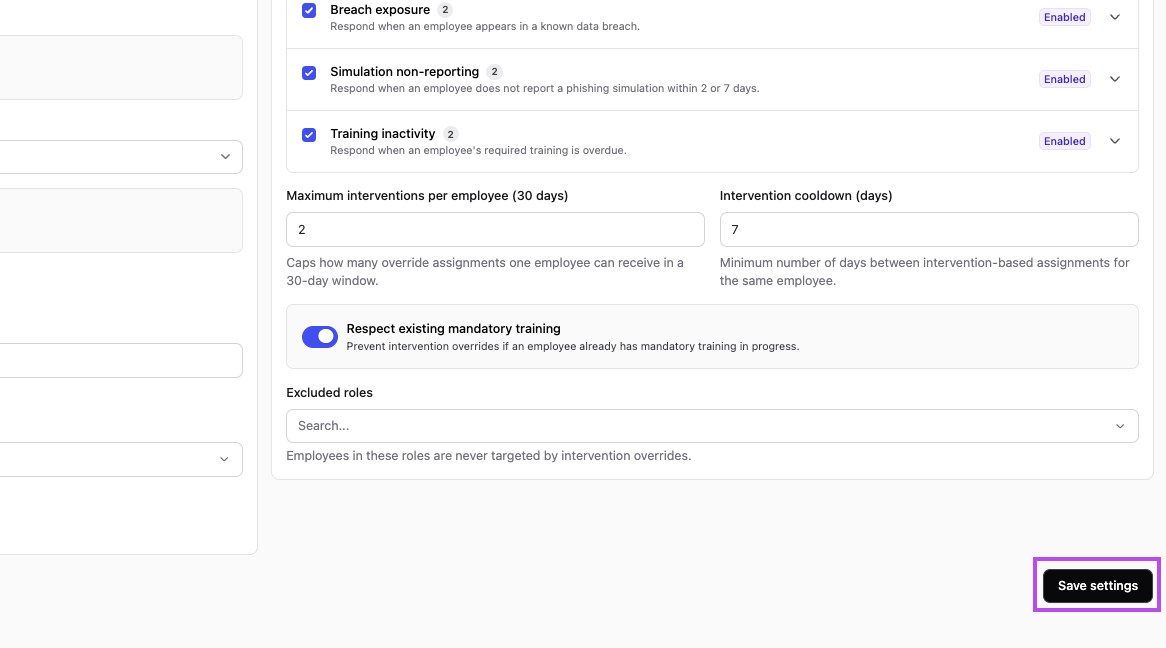
- Respect existing mandatory training — when turned on, intervention overrides are paused if an employee already has assigned training in progress, that is training that is not completed yet. This is on by default.
- Excluded roles — employees in these roles are never targeted by intervention overrides.
When you’re ready, click on Save settings.