
When the integration syncs, Moxso first asks Drata for employees who are current employees and who are not marked as security training compliant in Drata. Moxso works through the results page by page until all matching employees have been checked.
Moxso then filters those records to employees who have both a Drata user ID and an email address. The email address is used to match the Drata employee to an existing employee in Moxso. If the matching Moxso employee has a valid, non-expired compliance certificate, Moxso generates a PDF certificate and uploads it to Drata as security training evidence. The upload includes the PDF, the evidence type SEC_TRAINING, and the certificate completion date.
In short: Drata tells Moxso which employees need security training evidence, and Moxso uploads the relevant certificate back to that employee in Drata.
The evidence can be used to satisfy security awareness training controls under frameworks such as ISO 27001 and SOC 2. The integration does not create, update, or remove employees in Moxso.
Unlike the Vanta integration, which pushes completed training records directly to Vanta, the Drata integration is evidence-upload based: Drata tells Moxso which employees need evidence, and Moxso uploads the matching certificate.
Before you begin
You'll need an API token from your Drata account. Generate this in the Drata dashboard before starting the steps below.
Connect Drata to Moxso
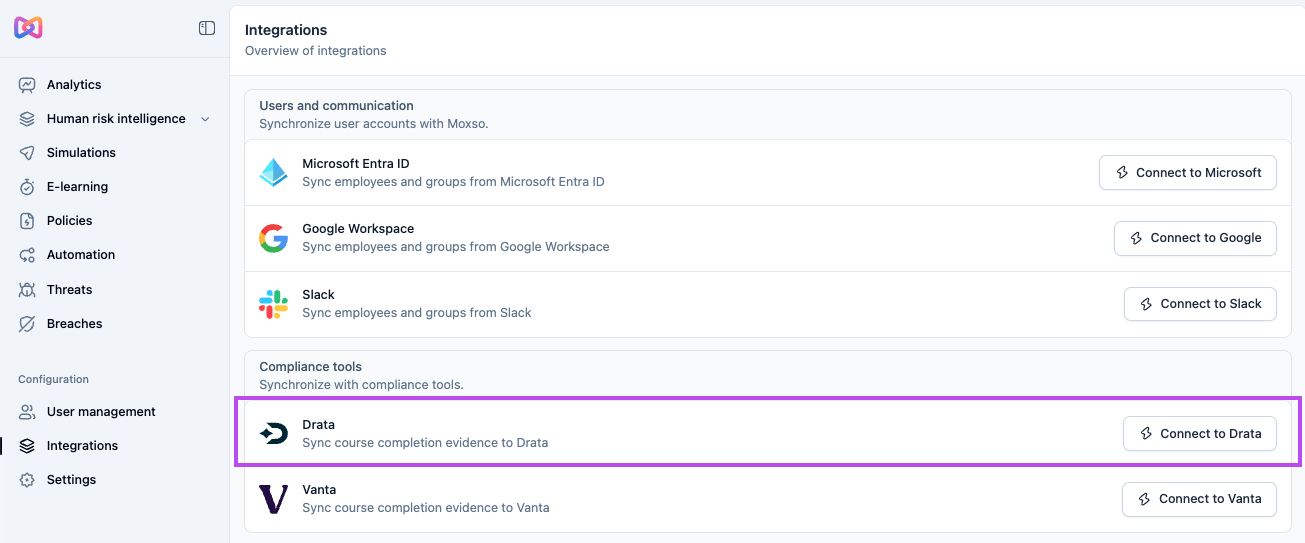
- Go to Integrations in the left navigation.
- Under Compliance tools, select Connect to Drata.
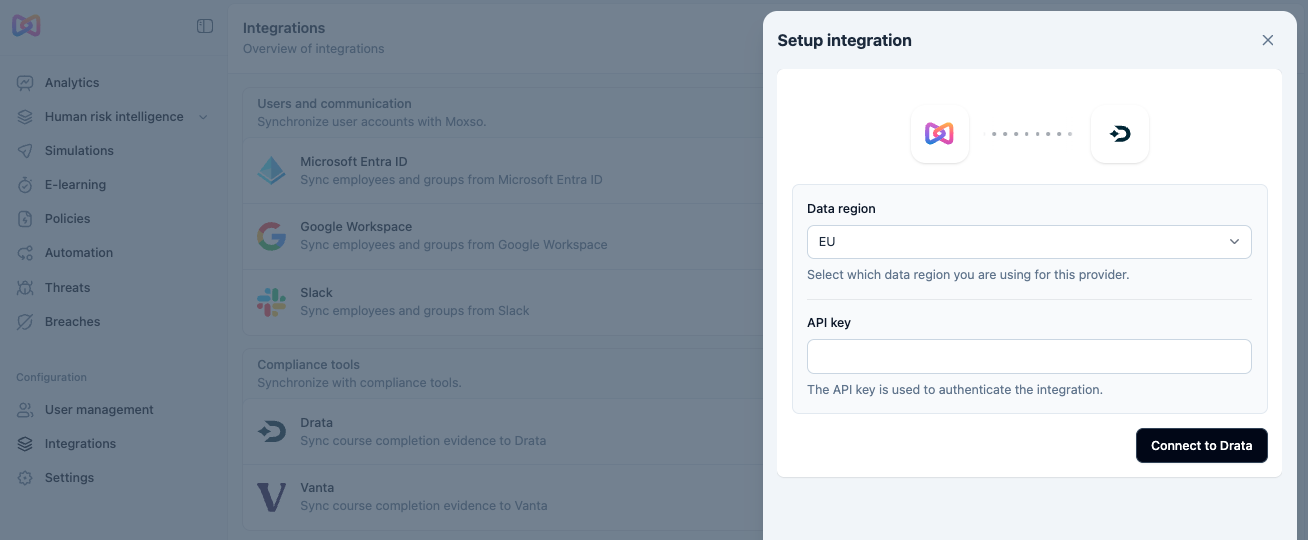
- Under Data region, select the region that matches your Drata account: EU or Global.
- Enter your Drata API token in the API key field.
- Select Connect to Drata.
Monitor and manage the integration
Once connected, select Drata from the Integrations page to open its detail page. From there you can:
- View the date of the first and most recent sync
- See a log of recent syncs, including how many employees were synced/updated, how many were skipped, and the sync status
- Select Refresh data to trigger a manual sync
To adjust sync settings, select the Settings tab. You can enable or disable the integration using the Enable synchronization toggle, and change how often Moxso syncs with Drata under Synchronization frequency. The available options are daily, weekly, and monthly.