
What is a Simulation?
Phishing is a constant threat to all companies, so it’s important to train the employees in identifying and averting advanced phishing attacks.
Simulated phishing attacks directly in your employees' inbox. Our phishing Simulations are sent out on an ongoing basis so that the employees are always ready to protect themselves and the company from cyberattacks.
Our smart algorithm contains machine learning technology, which means that the frequency and level of Simulation difficulty will depend on each employee's behaviour. In other words, employees that display risky behaviour like clicking on a link in a phishing Simulation will get sent more Simulations than the ones that do not.

How do I create a Simulation?
1. Before you start make sure to:-
- Check the User Management tab on the left to ensure your employees are all integrated as they should. If not, see our Integration guide. This is also a good time to create or import any Groups that you wish to use for targeting.
- Ensure you have set up Whitelisting so the emails will go through to your employees’ inboxes. If not, see our Whitelisting guide.
2. Go to the Simulation tab on the left panel.
3. Press Create Simulation at the top right and select if you want to make a One-off Simulation or an automated one. If you are making a test campaign, we recommend choosing One-off.
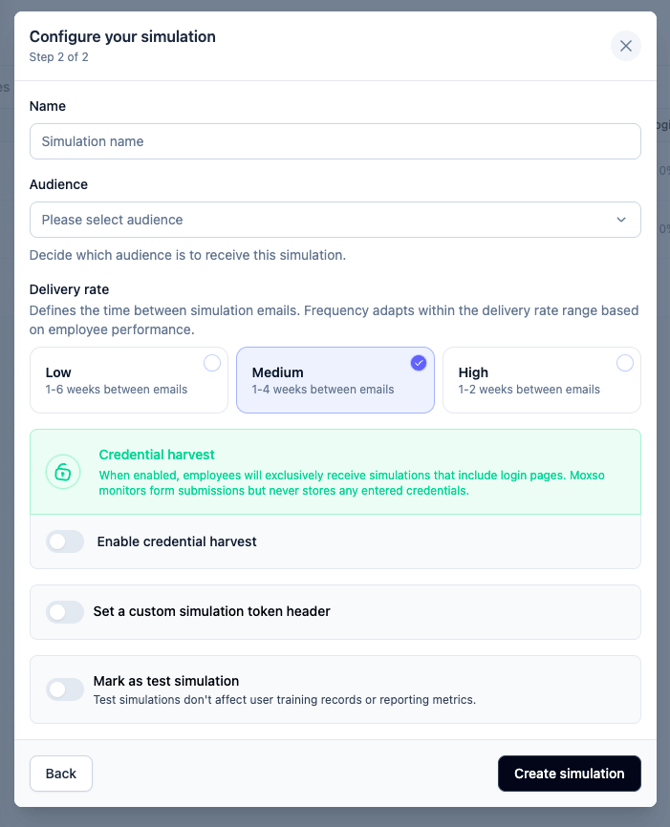
4. Enter your name of choice.
5. Select which audience the Simulation should target from the dropdown list. There you will see the Groups created or imported within the User Management section of the platform.
6. Pick the delivery rate. This is a general guidance and will not define exactly when the Simulations go out as our engine uses a smart algorithm to determine exactly when sendouts occur.
7. Toggle whether the Simulation should include credential harvesting (available on Adapt and Defend plans). This will prompt the employees to enter their credentials if they click the link in the phishing Simulation.
8. Select if the Simulation should have a token header. That is only applicable if you have a specific email spam filter that requires putting a token to let them email through.
9. If this is a test, enable Mark as a test Simulation so the data from this does not impact the Analytics.
10. Press Create Simulation (no email will be sent at this point).
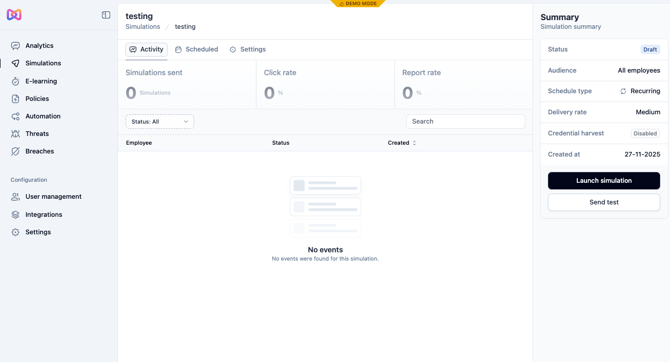
11. If this is a test, click on send test.
12. If needed you can go into Settings at the top and edit any of the above configurations.
13. When you are ready, select Launch Simulation. You will be asked a safety question just to confirm you want to launch this Simulation to that number of recipients.