What is Training?
Moxso's content not only gives employees insight into the dos and don'ts of cyber security. They will also gain an understanding of why it's so important for them to train. The content is updated on a regular basis and covers cybersecurity topics that always relevant, including:
- CEO fraud
- Deepfakes and the threat of AI
- MFA bombing
- Social engineering
- Security in the remote office
- GDPR
- And much more
Step by step
1. Go into the Automation tab on the left panel of your admin page.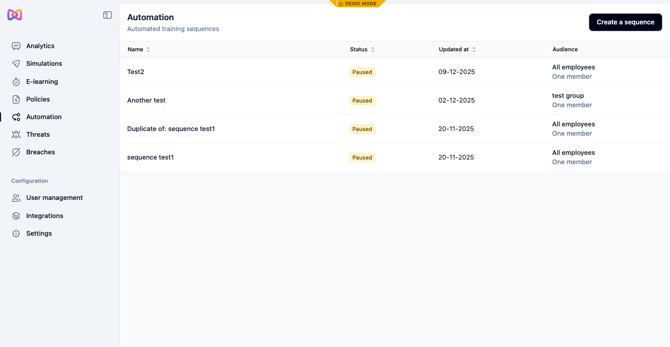
2. Press Create a sequence at the top.
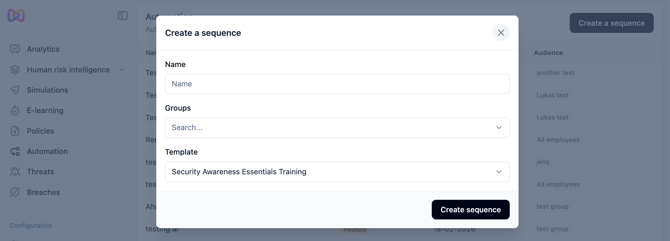
3. Select a name and group. (Don’t forget you can always add or edit Groups within User Management.) You can also select one of our templates of videos and quizzes which will then populate the sequence directly. Then click Create sequence.
If you are on our Essentials plan, select the template entitled "Security Awareness Essentials Training". Further down, ignore step 4. In step 5, pick the specific date option to launch the sequence.
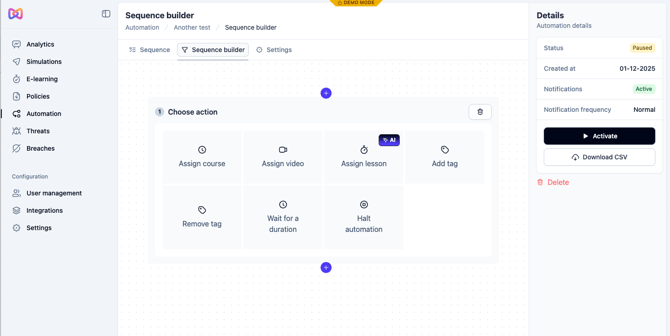
- Assign a course - so you can choose a set of videos; select the length of time to set a deadline.
- Assign a video - so you can choose a particular video.
- Assign a lesson - so the system assigns courses and videos intelligently. It excludes any content you’ve already completed, then applies our selection logic to determine what to assign next.
- Add or remove a tag - to help you make more specific segmentation.
- Add a waiting duration - to tailor your timeline.
- Halt automation - to mark the end of this particular Training.
→ See our template of recommended Training at the end of this guide.
5. Continue building until you are satisfied, then press Settings at the top.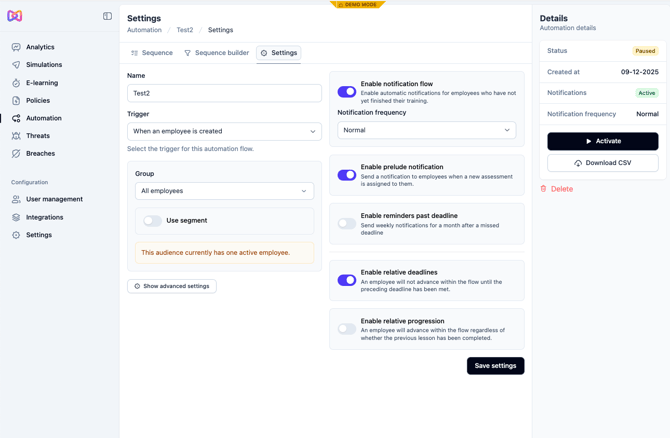
6. Select a trigger -- this determines when the Training will be pushed to employees:
- On a specific date
- When an employee is created - this is usually used to create a specific sequence for onboarding new employees. We recommend adding a course here as new employees often need a ramp up to get them at the same level as other employees.
- When an employee is added to the sequence audience - make a specific training for new employees from a specific group, so from a particular department for example.
- When an employee clicks a link in a simulation - create training dedicated to employees that click onto a link in a Phishing Simulation.
Learn more about how to choose the right trigger in this article: Which automation trigger should I use?
7. Select a group to be the target audience. You can always create or import a new group under User Management.
8. In advanced settings, you can select if you wish employees to be assigned lessons even if they have already completed them or to go through the automation more than once.
9. On the right side, you can select :
- Whether you want notifications to send reminders to employees and the frequency for these. The cadence is vague because the system will adapt to the situation, but in general, Normal means a week between reminders but as the deadline approaches it will switch to daily.
- Whether you want an email to be sent when a new sequence of Training is assigned to an employee.
- Whether you want reminders to be sent after the deadline has passed.
- Relative deadlines means an employee will not get to the 2nd step if the 1st deadline has not been met.
- Relative progression means the employee will be assigned the following items even if they have not completed the previous one.
Should I make individual training programs?
Yes. You will soon find that some groups of employees need more training than others. Moxso helps you identify which employees pose a particularly high risk so you can make custom Training sequences for them.
In general we also recommend having a sequence specifically for new employees as they typically pose a greater security risk than existing employees. You may also wish to create a sequence with more advanced training for the employees in your organization that have access to more sensitive components such as your IT team.
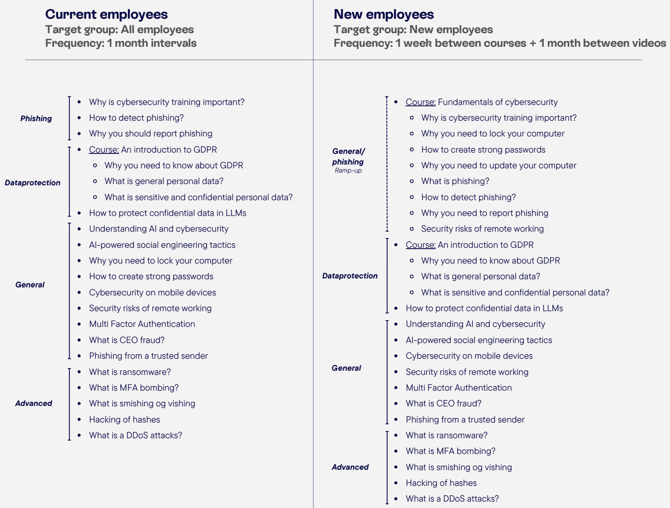
Do you have recommended Training sequences?
Yes, we advise you to set up two separate sequences. One for current employees and one for new employees. You can create each one with the following schedule and selecting the trigger (explained above) as applicable (“On a specific date” for all employees and “When an employee is created/added to the sequence audience” for new employees):