
All you need from us is the application ID provided below.
You use this to find and authorize the applications in your Entra ID. Please note that depending on the plan you’re on, you might need to do that twice: for the employee portal AND for the Outlook Reporting add-in*.
| Moxso Hub (employee portal): | 01f5f013-e5ab-4c9e-b556-07242da8316e |
| Reporting Add-in in Outlook: |
e30ad44b-d7ba-44da-8d55-3548000cc5cb |
* The Phishing Reporting add-in is available on the Understand, Adapt, and Defend plans.
Grant tenant-wide admin consent in Enterprise applications pane
You can grant tenant-wide admin consent through the Enterprise applications pane if the application is already provisioned in your tenant. For example, an app could be provisioned in your tenant if at least one user consents to the application. For more information, see How and why applications are added to Microsoft Entra ID.
To activate SSO for the employee hub, complete the following steps:
1. Sign in to the Microsoft Entra admin center as at least a Cloud Application Administrator.
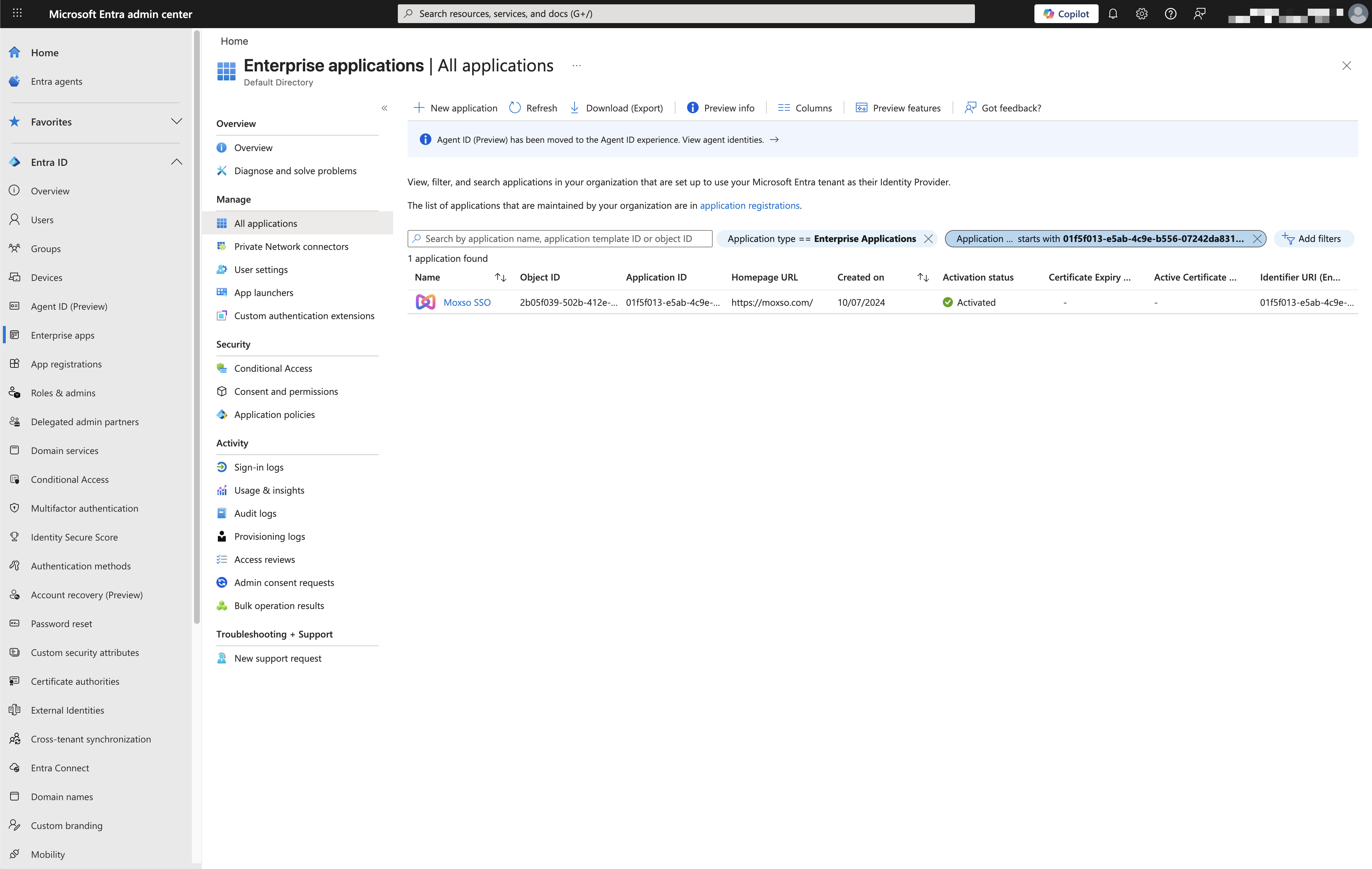
2. Go to Entra ID > Enterprise applications > All applications.
3. Enter the name of the existing application in the search box, and then select the application from the search results. Search by ID or name: Moxso SSO.
 .
.
4. Select Permissions under Security.
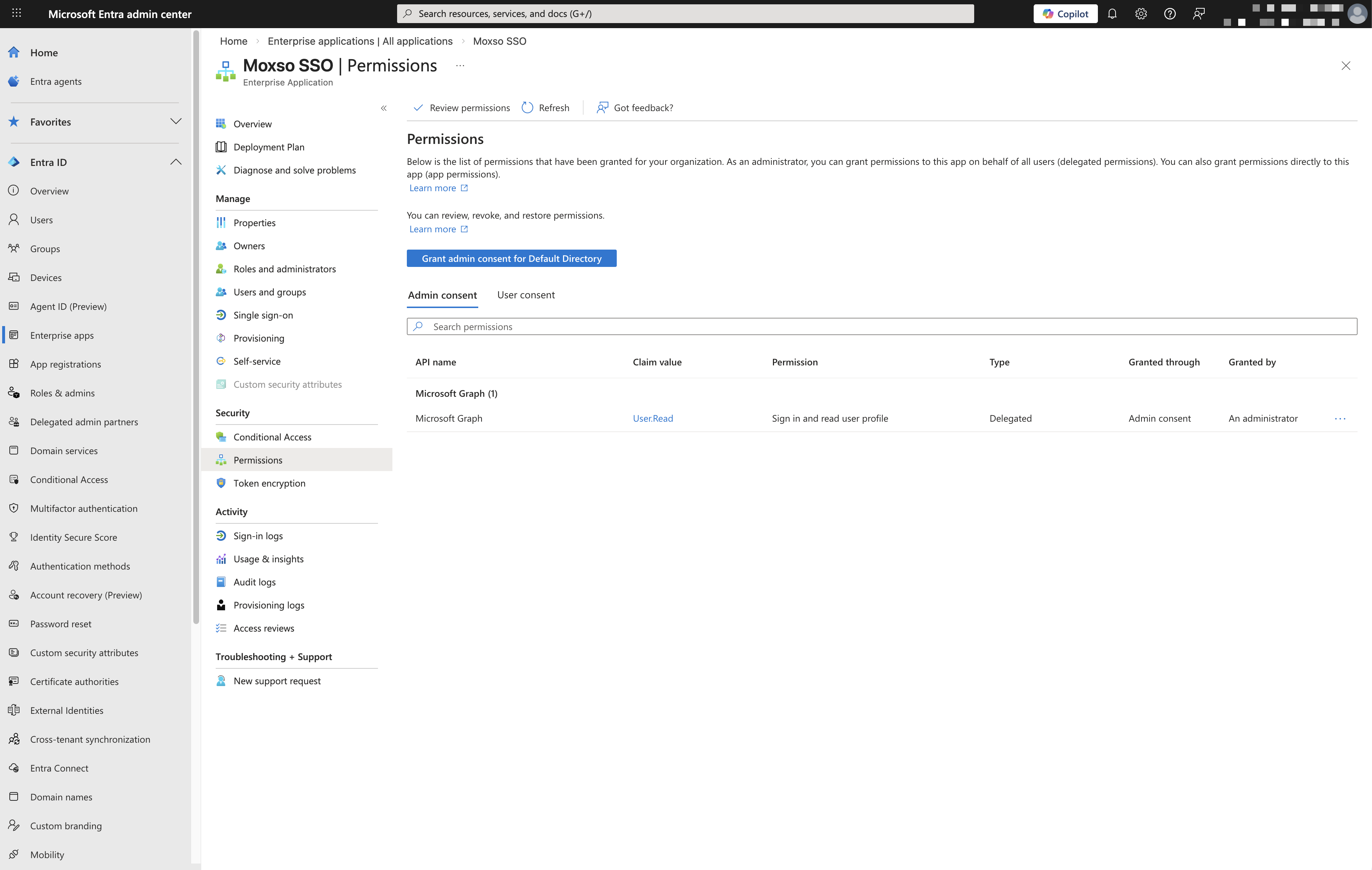
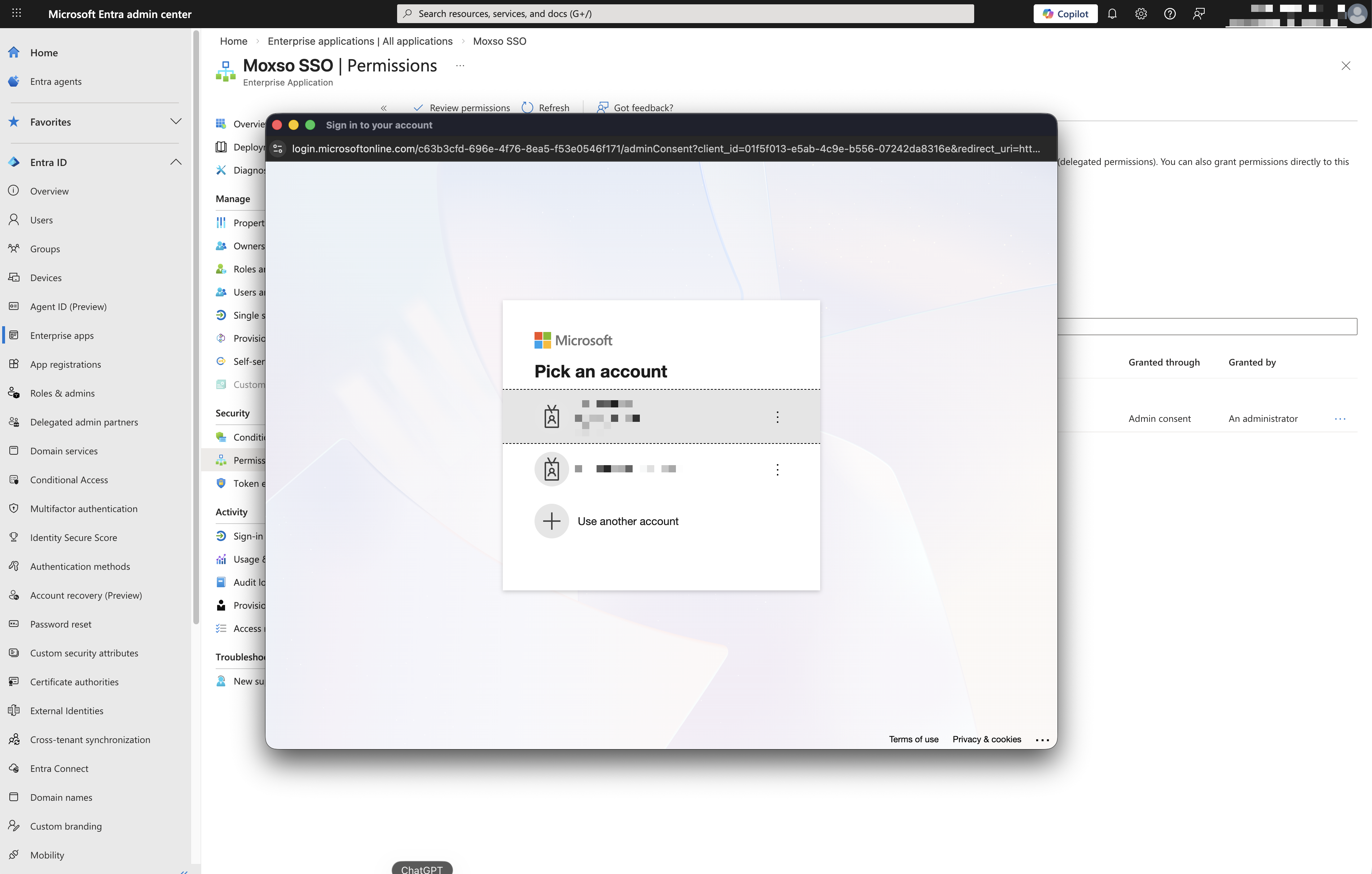
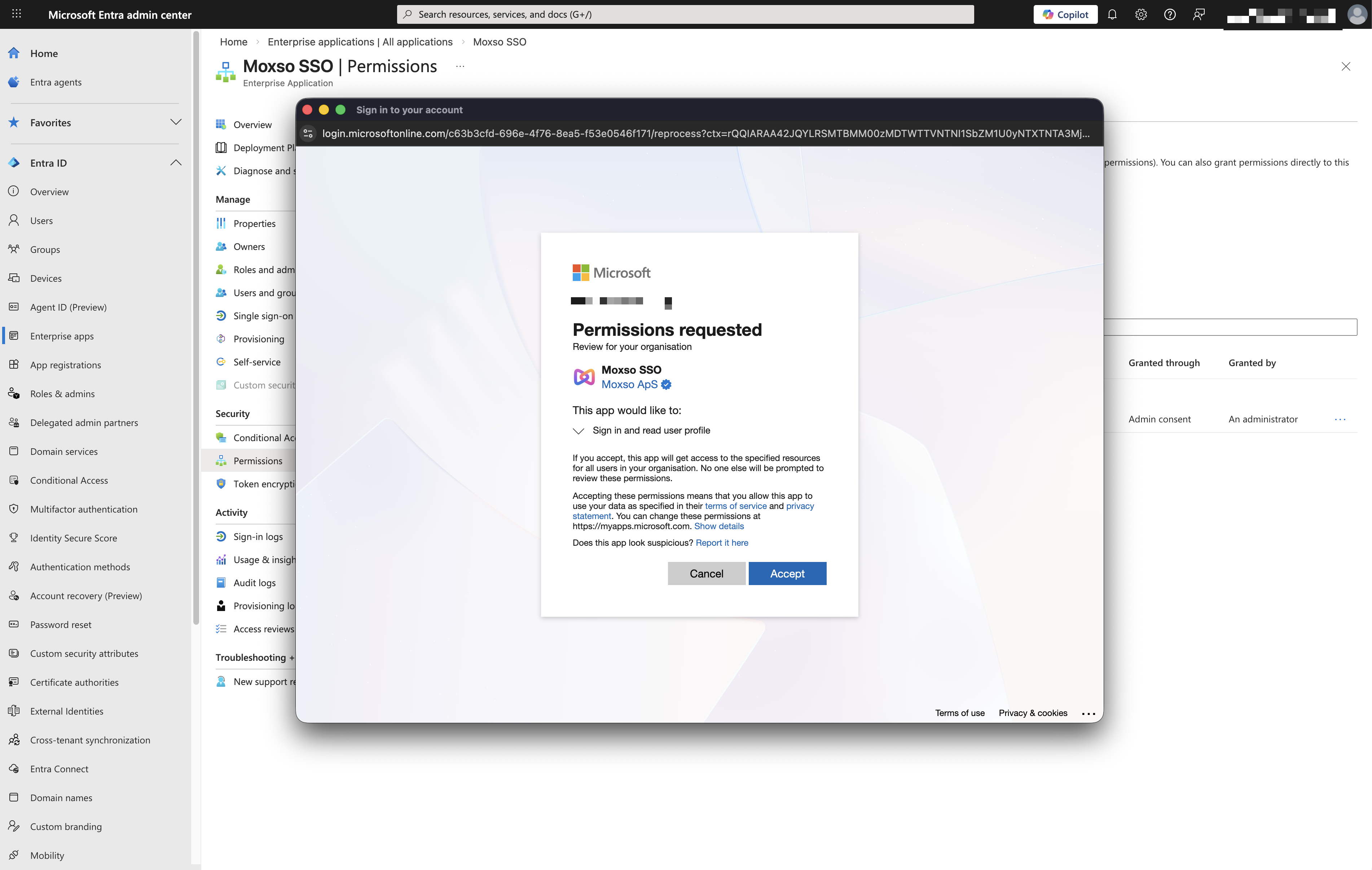
5. Carefully review the permissions that the application requires. If you agree with the permissions the application requires, select Grant admin consent. You will be prompted to select an account and accept the permissions request.
For the Reporting add-in, repeat the same steps using the corresponding application ID at the top of this page.