
Before you begin
You'll need admin access to the Google Workspace Admin Console.
How to set it up
"The allowlisting guide is built into Moxso. Navigate to Settings > Simulations, scroll down to the allowlisting guide in the bottom right, and click Open guide.
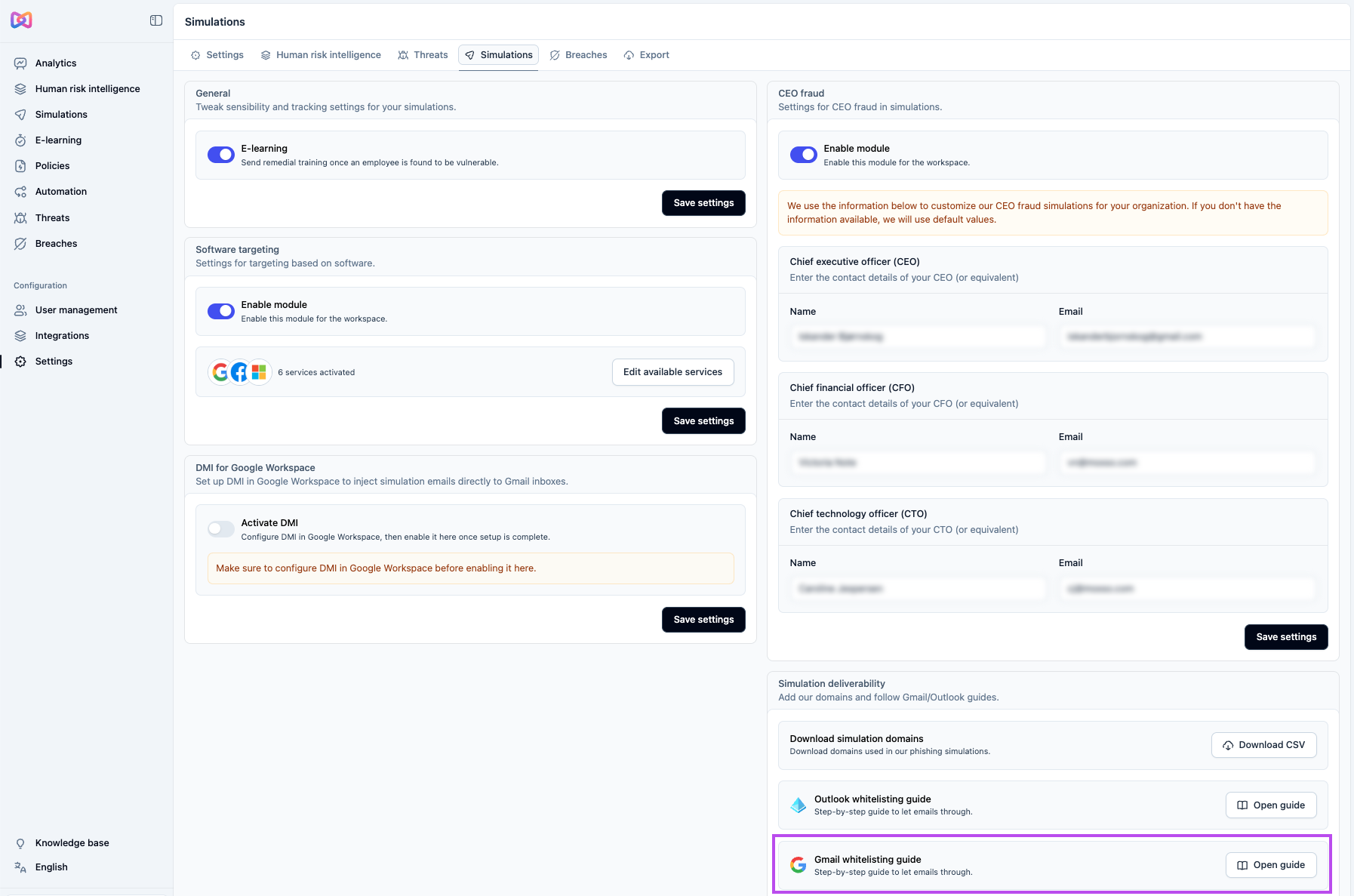
The guide opens in the Google Workspace Admin Console under Spam, Phishing, and Malware settings and walks you through three configuration steps:
- Allow Moxso IP addresses — add Moxso's sending IPs to the email allowlist.
- Configure Inbound Gateway — register Moxso's IPs as a known inbound gateway and configure message tagging. Note: during this step, ensure that Reject all mail not from gateway IPs is not checked — enabling this option would block all mail from external senders.
- Configure Spam Rule — add a bypass rule so simulation emails don't display spam warnings. This step includes a CSV download with the full list of Moxso simulation domains to add to the rule.
Test your configuration
Once you've completed all five steps, run a test to confirm simulation emails are getting through.
- Go to Simulations in the left panel.
- Click Create simulation and select One-off simulation.
- Enter a name, select an audience, and check Mark as test simulation.
- Click Create simulation.
- Click Send test — do this several times to test emails from different domains and with different content types.
- Check that the test emails arrive in your inbox. If any land in your spam folder, one or more of the allowlisting steps may not have applied correctly. Go back through the guide and confirm each step was saved.
Additional configuration
If your organization centrally manages Chrome, simulation links may be flagged or blocked by Google Safe Browsing. See How do I set up allowlisting for Google Safe Browsing? to prevent this.