
As first choice, we recommend setting up SCIM instead of the native integration described in this article. SCIM keeps Moxso fully in sync with your identity provider, including group membership and offboarding, and lets you add single sign-on in the same setup.
Before you import your data
Pause or delete any active automation sequences or phishing simulations before you import your directory. Importing employee data can start campaigns that are already running.
Setting up the native integration
1. Go to Settings.
2. Go to Verified domains and confirm your company domain is listed with a Verified status. Add any additional domains you need. Confirmation is sent to your admin email.

3. Go to Integrations and click Connect next to your provider. You need global admin access to complete this step. This imports all employees from your connected directory.
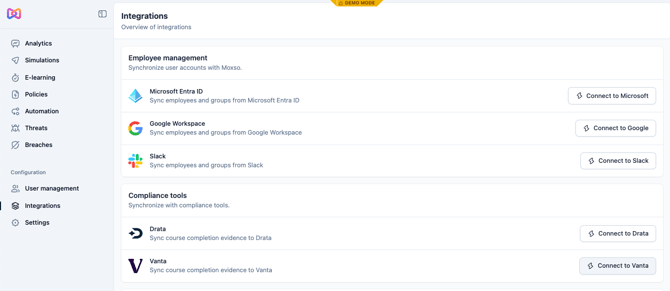
This will import all the employees in your AD and put them into the default All employees group in Moxso. You can import specific groups afterwards under User management > Groups > Create group > Import groups.
4. Go to User management to confirm your employees were imported correctly. Deactivating accounts that don't need training, such as shared admin or support inboxes, is optional. Select the checkboxes next to those users and click Deactivate.
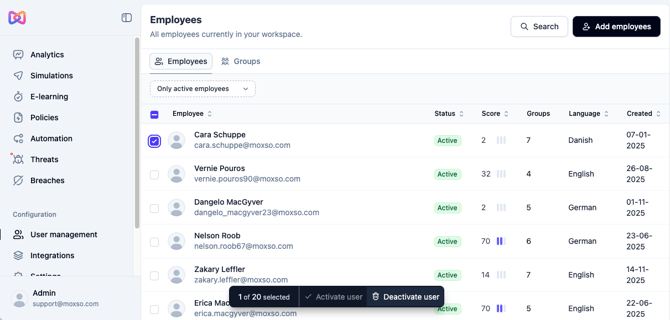
Employees don't receive an email when they're imported. They only get one when they're assigned training or when they try to log into hub.moxso.com.
Configure sync settings
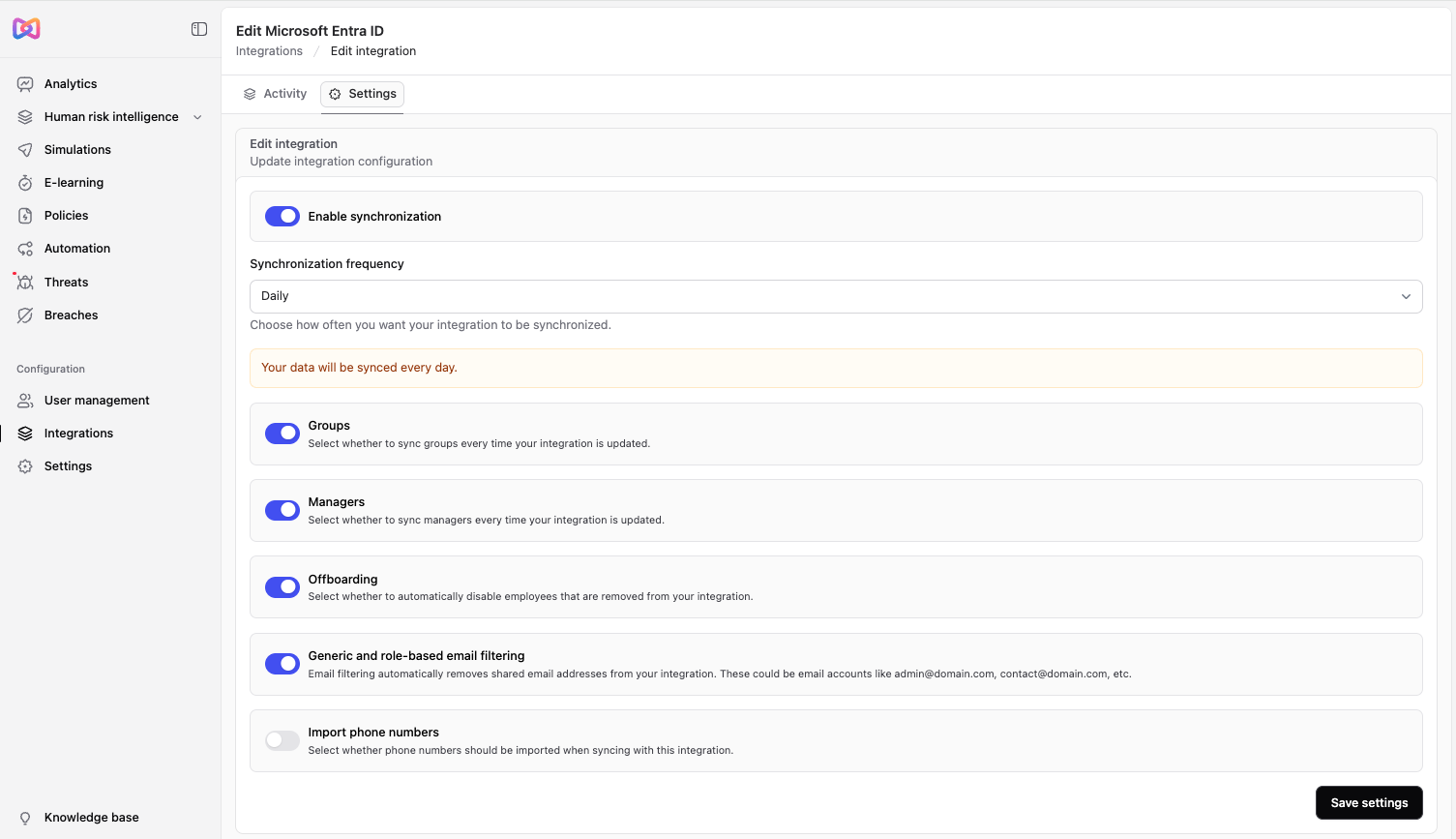
- Go to Integrations and click the cog icon next to your integration.
- Select the Settings tab.
- Turn on Enable synchronization to keep employee data up to date automatically.
- Choose how often Moxso should sync automatically.
- Choose whether to sync groups and managers for more detailed data.
- Turn on Offboarding automation to deactivate employees who leave.
- Turn on general and role-based email filtering to exclude shared inboxes, such as admin or support addresses.
- Choose if you want to import phone numbers.
- Create one directory group that contains everyone you want to include in simulations and training. This makes it easier to select who's included.
- Add new hires to that group and any other relevant groups as part of your regular onboarding process, so they're picked up automatically.
- Check that employee language settings are correct in your directory. Moxso uses this to send emails and training in the right language.