
System notifications, password change requests, and phishing simulations will still be sent out as emails only. This is exclusively about training notifications, such as when a user is assigned a course or a video or is sent a reminder about completing them.
More specifically, employees can receive the following types of notifications:
- Onboarding introductions and reminders
- Mandatory course, video, and policy assignments
- Manual, deadline, and overdue training reminders
- Remedial training messages
- New breach notifications and reported-threat status updates
- HRI Interventions
Go to Integrations in the left navigation of your admin view to find the Teams integration.
The setup has 2 (two) parts: installing the Moxso notification app in Microsoft Teams Admin Center, and then connecting and enabling notifications from within Moxso.
Turning on Slack notifications does not disable the email notifications. It’s just an additional option to distribute the original email notifications.
Before you begin
You'll need a Microsoft Teams administrator or Global administrator account for your Microsoft 365 tenant.
Step 1: Download the Moxso Teams app
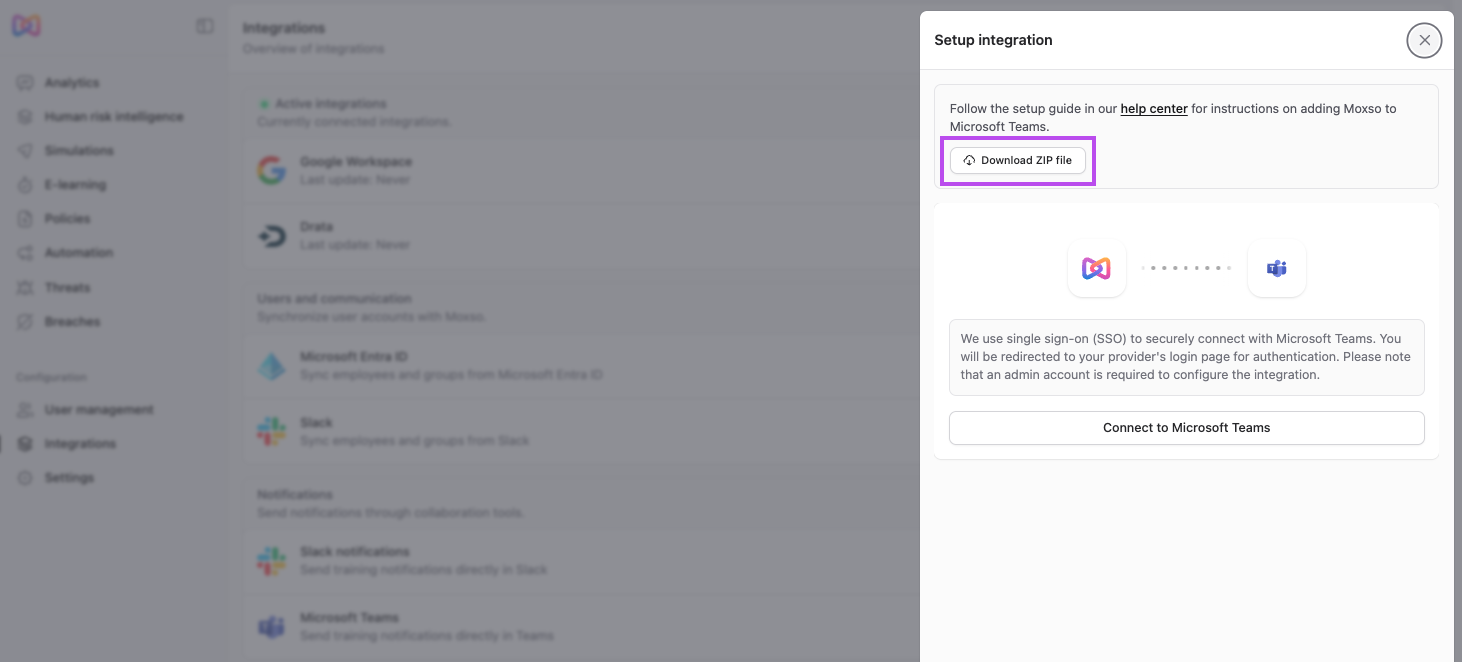
- Go to Integrations > Notifications and click Connect to Microsoft Teams.
- In the Setup integration panel, click Download ZIP file.
Step 2: Enable custom apps in Teams Admin Center
- Go to Microsoft Teams Admin Center and sign in as a Teams or Global administrator.
- Go to Teams apps > Setup policies.
- Open the Global (Org-wide default) policy.
- Enable Allow uploading custom apps.
Step 3: Upload the ZIP file
- Go to Teams apps > Manage apps.
- Select Actions > Upload new app.
- Click Upload and select the ZIP file you downloaded in Step 1.
Step 4: Set app availability (optional)
By default, the app is available to your entire organization. If you want to limit notifications to specific users or groups, you can do this before connecting.
- Go to Teams apps > Manage apps.
- Find Moxso Notifications and click on it.
- Select the Users and groups tab.
- Edit app availability to include the relevant users or groups.
Step 5: Connect and enable in Moxso
- Return to Integrations in Moxso and click Connect to Microsoft Teams.
- In the Setup integration panel, click Connect to Microsoft Teams. You'll be redirected to Microsoft to review and accept the permissions the app requires.
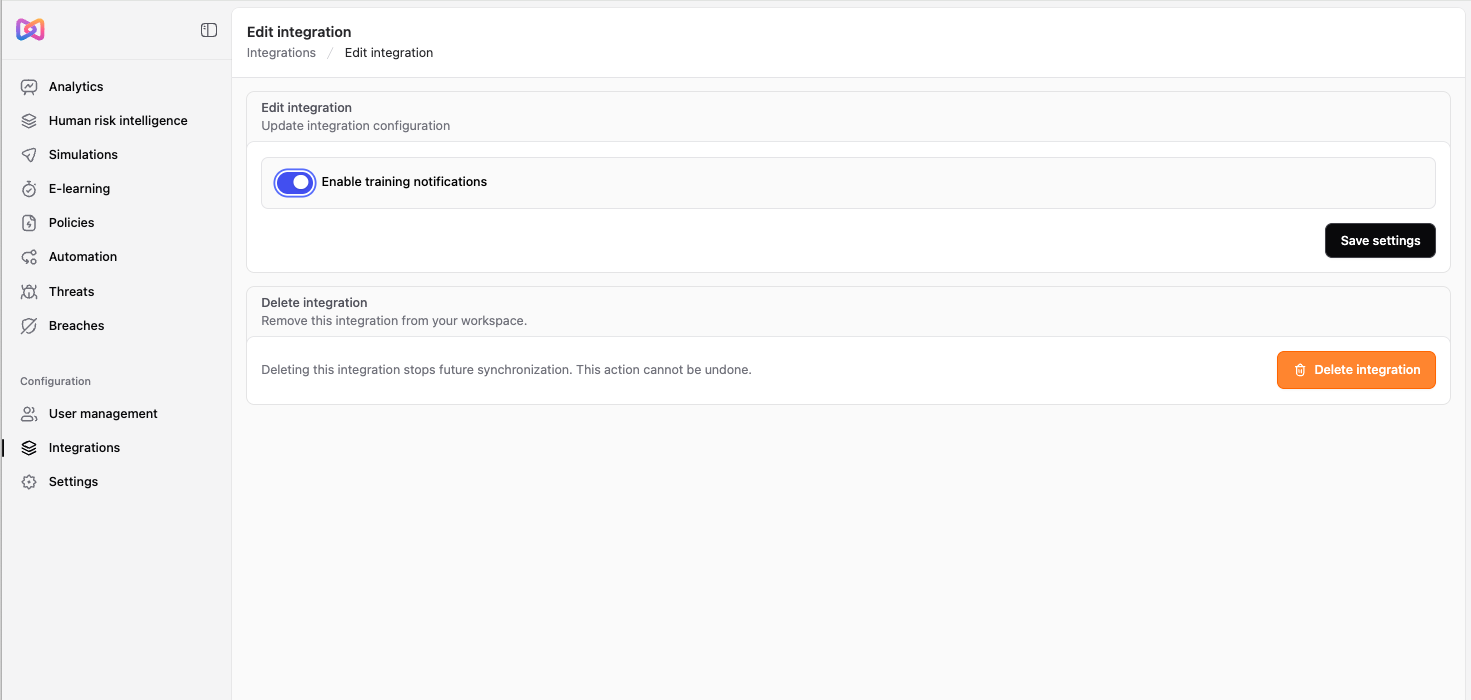
- Once redirected back to Moxso, go to Edit integration.
- Turn on Enable training notifications.
- Click Save settings.
Once enabled, Microsoft runs a nightly job that installs the notification app for each user in your organization. After the installation, Moxso can start sending that user notifications in Teams.
To stop sending notifications, return to Integrations, open the Teams integration settings, and turn off Enable training notifications.
Common questions
How long does it take for users to start receiving notifications?
The installation job runs nightly, so users will typically start receiving notifications the day after you complete setup.
Can I limit notifications to specific users rather than my whole organization?
Yes, use the steps in "Set app availability" above to scope the app before enabling notifications in Moxso.