Using an external spam filter?
If your organization routes inbound mail through an external spam filter before it reaches Microsoft 365, you'll need to complete an additional configuration step before following the guide below. See How do I set up allowlisting with an external spam filter?.
How to set it up
The allowlisting guide is built into Moxso. Navigate to Settings > Simulations, scroll down to the allowlisting guide in the bottom right, and click Open guide.
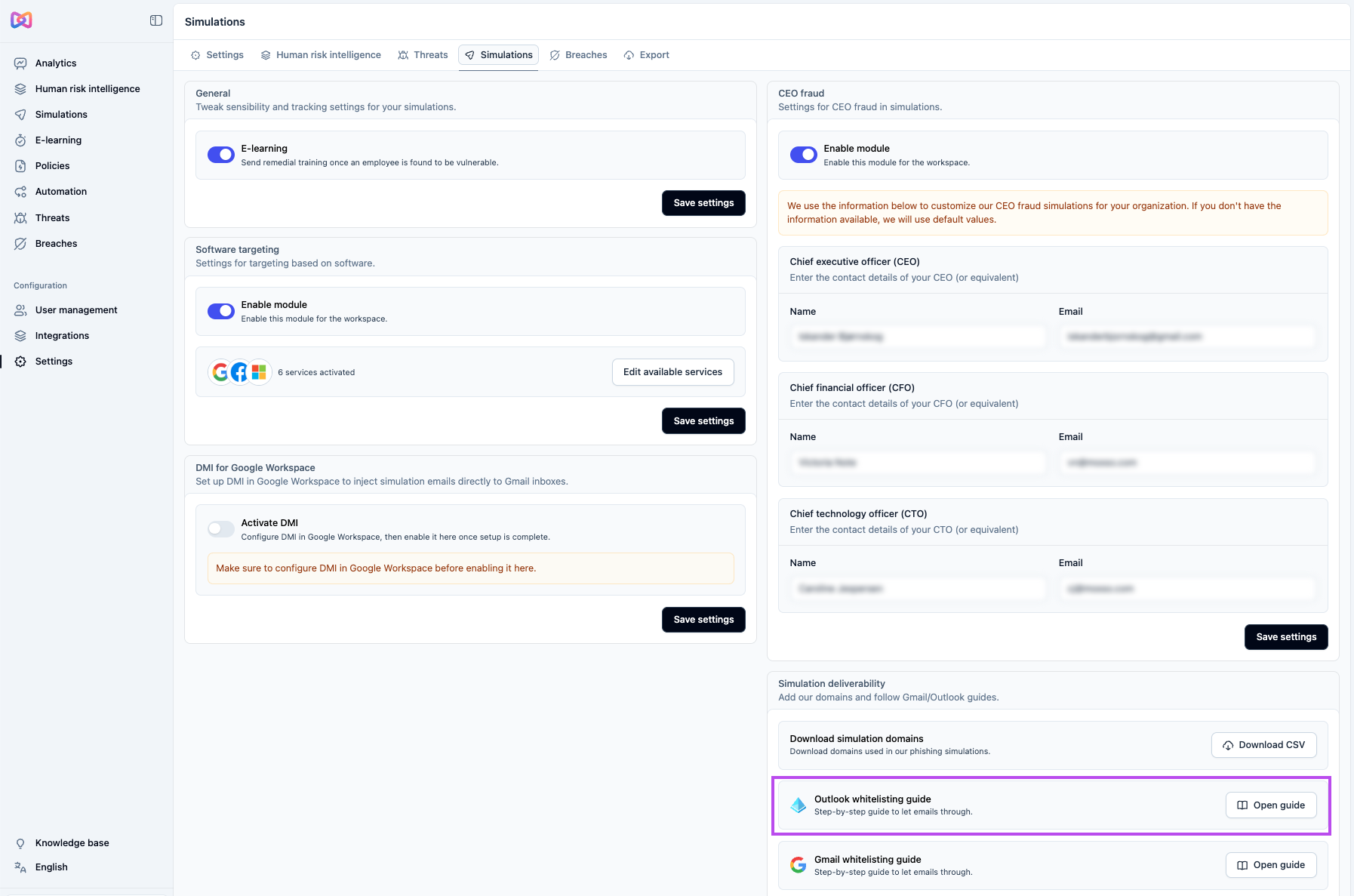
The guide walks you through five steps:
- Add Moxso's IPs to Tenant Allow/Block Lists — adds Moxso's sending IPs to the spoof intelligence list in Microsoft Defender.
- Add Moxso's IPs and domains to the Third-Party Phishing Simulation settings — registers Moxso as a known phishing simulation provider in Microsoft Defender.
- Bypass Junk filter — creates an Exchange mail flow rule so Moxso emails don't get moved to the Junk folder.
- Bypass Spam filter — creates an Exchange mail flow rule so Moxso emails aren't marked as spam.
- Bypass Safe Links — creates an Exchange mail flow rule so Microsoft Defender doesn't rewrite or block links in simulation emails.
The guide also gives you the option to run the configuration using a PowerShell script if you prefer.
Test your configuration
Once you've completed all five steps, run a test to confirm simulation emails are getting through.
- Go to Simulations in the left panel.
- Click Create simulation and select One-off simulation.
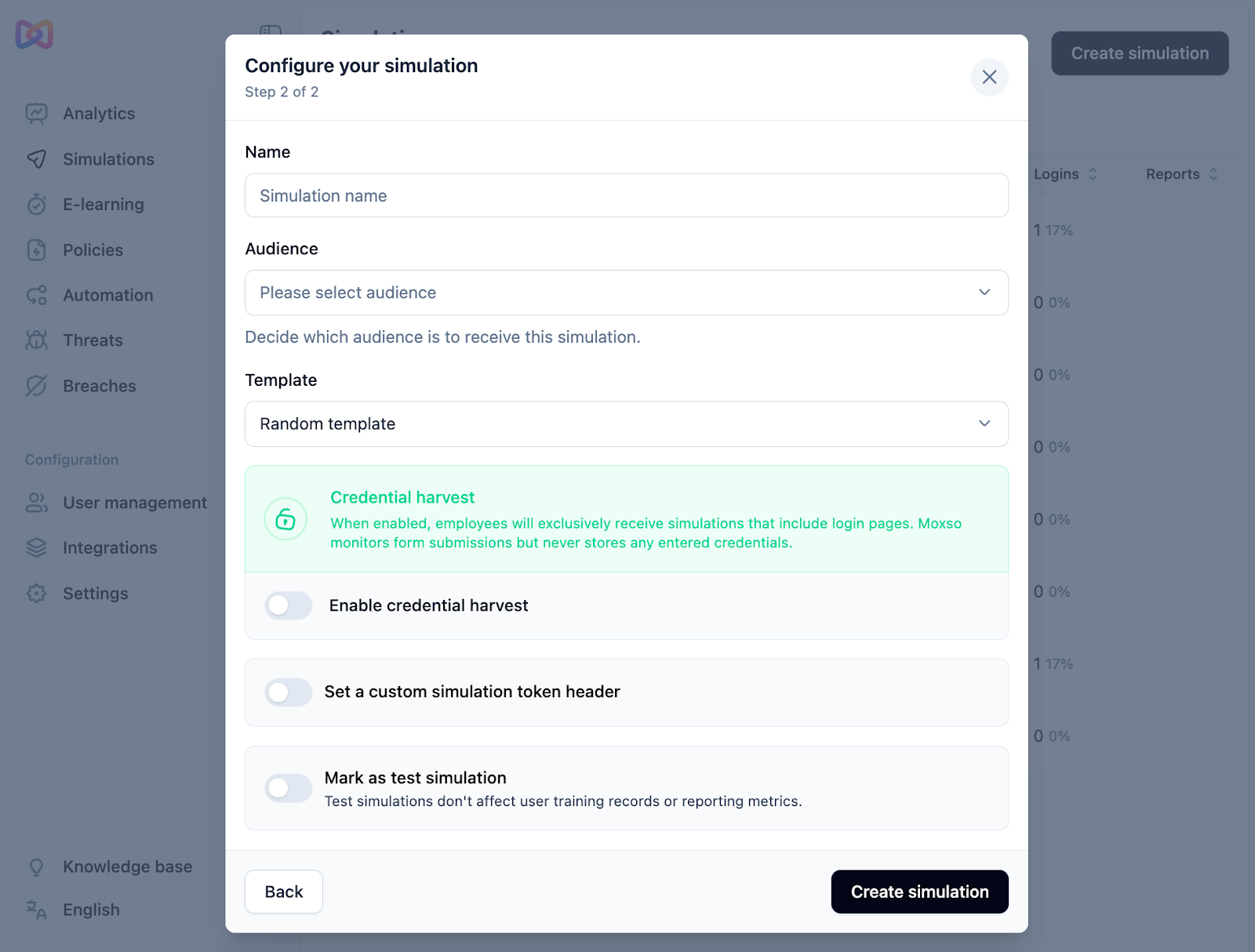
- Enter a name, select an audience, and check Mark as test simulation.
- Click Create simulation.
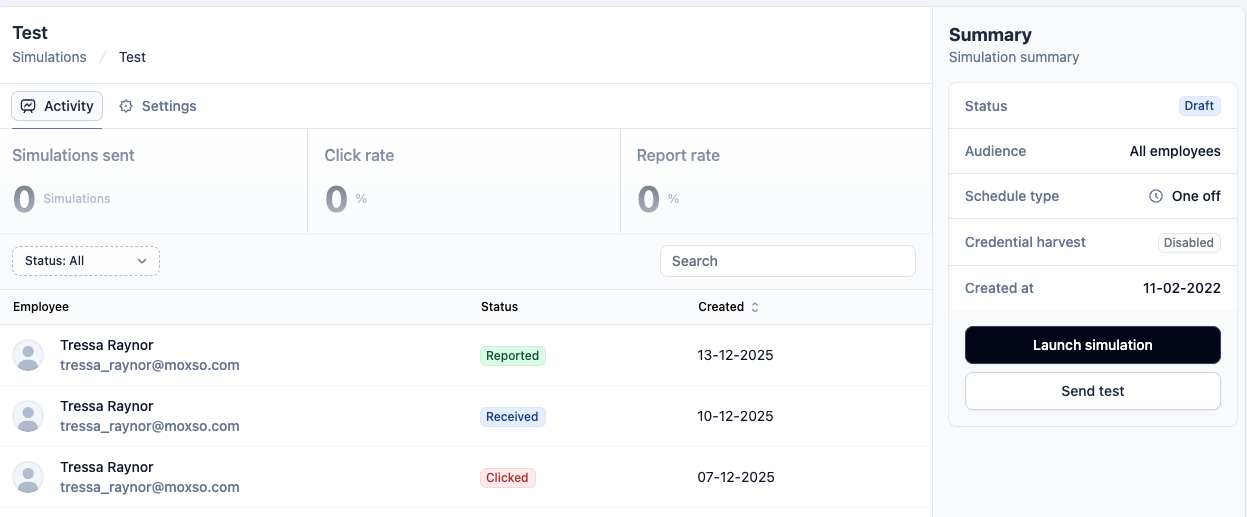
- Click Send test — do this several times to test emails from different domains and with different content types.
- Check that the test emails arrive in your inbox. If any land in your spam folder or are caught by your spam filter, one or more of the allowlisting steps may not have applied correctly. Go back through the guide and confirm each step was saved.