
Manager reports let you schedule automated, team-level reports to be sent directly to managers in your organization. Each report gives managers a clear picture of how their team is engaging with Moxso — including resilience scores, training activity, and phishing simulation results — so they can act on the data directly.
How it works
Manager reports pull data from your Active Directory integration (e.g., Entra ID or Google Workspace), using the manager hierarchy already in your directory. Each report is sent by email to the manager you specify, covering the team members who report to them. You can optionally roll up reporting to include everyone further down the hierarchy.
Set up a manager report
Step 1: Enable manager data
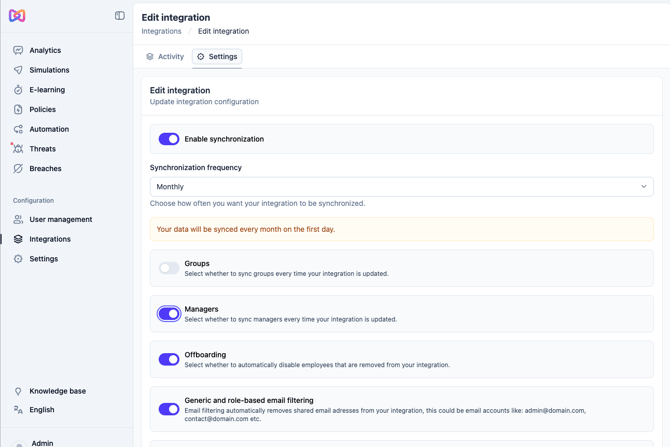
- Go to Integrations in the left panel and click the settings icon for your integration.
- Toggle on Managers.
- Return to the Integrations page and click Refresh data.
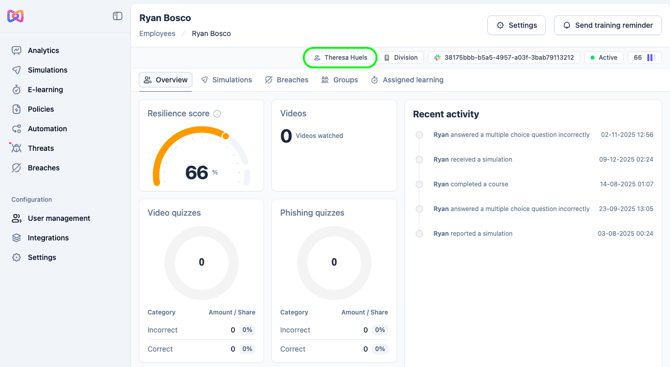
Manager reports require that your Active Directory includes hierarchical manager data. To check that it's working, open a user profile — you should see a manager name at the top.
Step 2: Create the report
- Go to Settings in the left panel, then select the Export tab.
- Click Create a new report in the top right.
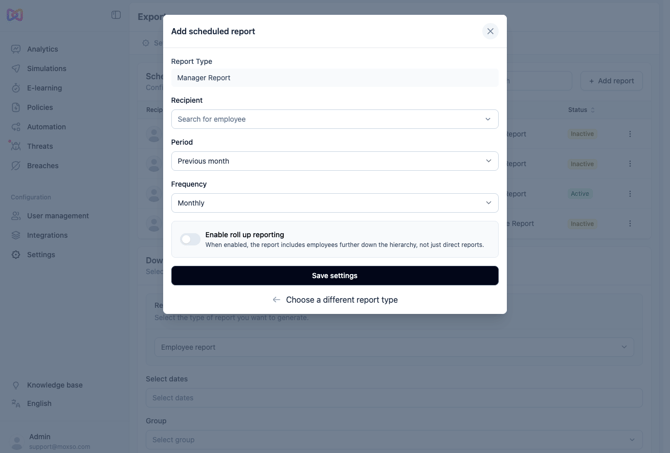
- Select Manager report (not Workspace report).
Step 3: Configure the report
- Under Recipient, select the manager who will receive the report and whose team the data will cover.
- Under Period, choose the timeframe the report should cover.
- Under Frequency, choose how often the report should be sent.
Notes on period and frequency:
- Quarters follow calendar quarters: January–March, April–June, July–September, October–December.
- Periods always refer to the most recently completed period. For example, a report set to Last quarter with Monthly frequency — sent in May — will show January–March data, since Q2 is not yet complete.
- Reports are sent at the start of each frequency period: weekly reports go out on Monday; monthly reports on the 1st of the month.
- The period looks at data within the current calendar year. A Previous year period with Monthly frequency will show only the completed months so far (for example, the March report shows January and February data).
- We recommend matching the frequency to the period for the most relevant data: if you want last month's data, set the period to Previous month and the frequency to Monthly.
Step 4: Save and send
- Optionally, enable Roll-up reporting to include everyone reporting up through that manager, not just their direct reports.
- Click Save settings. The report is now active and will go out on schedule.
- To preview the report before the next send, click the three-dot menu next to the report and select download.
Reading the report
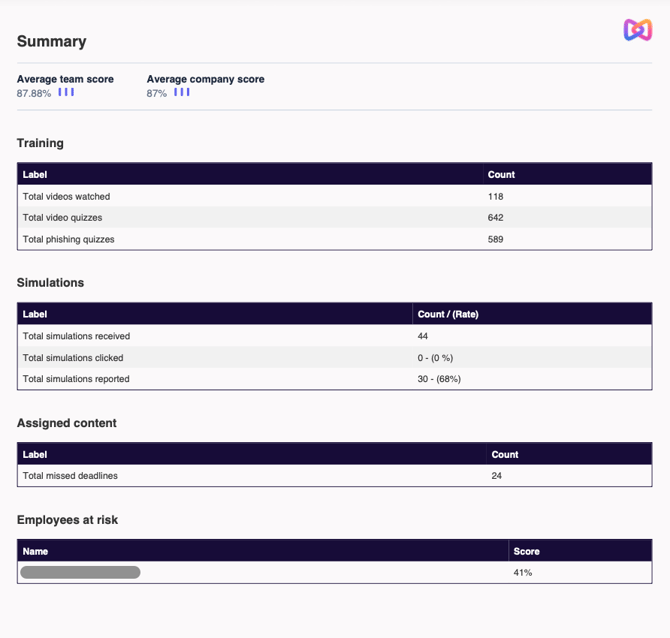
The report is downloaded as a PDF and opens with a summary section that includes:
- A comparison of the team's average resilience score versus the company average
- Engagement numbers for training modules and phishing simulations
- Any missed deadlines
- Employees with a particularly low resilience score, flagged as at risk
Scrolling down shows an individual breakdown for each team member and how they're engaging with Moxso.
Tips for managers
When a manager receives their report, the most useful place to start is the summary page. It shows at a glance how the team compares to the rest of the company and highlights any employees with missed deadlines or a low resilience score.
From there, the manager can scroll to that employee's individual page to understand why their score is low. For example: are they completing phishing simulations but not engaging with training videos? That detail makes the data actionable.
Before the first report goes out, it's worth giving managers a heads-up — let them know when to expect it, how to read it, and what the company's goals are. That context helps them turn the data into concrete next steps.