
What are key settings I should pay attention to?
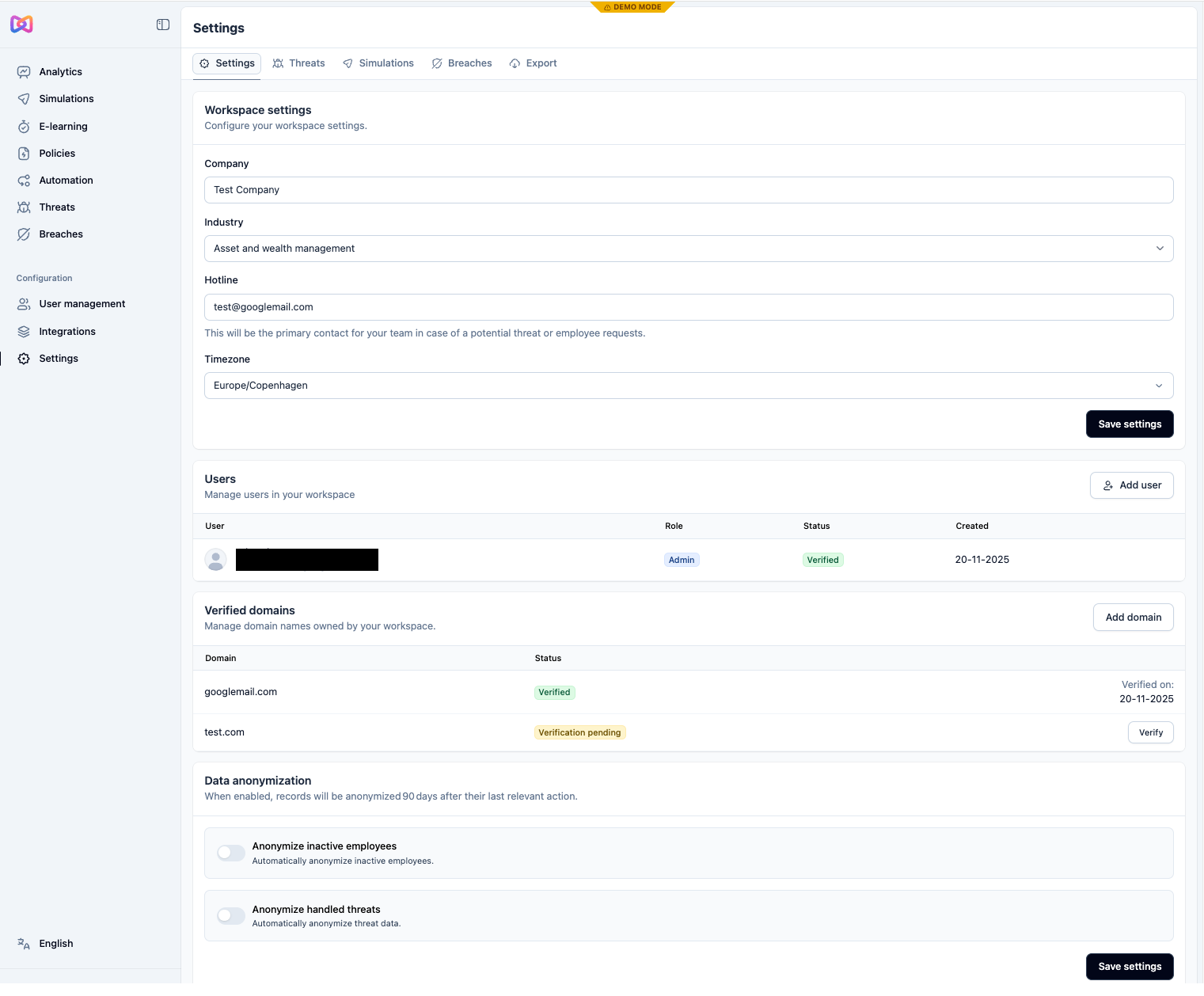
Under the top Settings tab
- Hotline
- Set an email address that should be used if an email is reported as a Threat and if there is an employee request.
- Users
- Add users with specific access such as another Admin.
- Verified domains
- Add domains to ensure that all your employees are pulling through from your AD correctly. Use the Verify button to confirm the domain; you will receive an email to your admin email inbox (check your spam folder as needed).
- Data anonymization
- Toggle if you would like employees and threats to be anonymised after 3 months of being inactive.
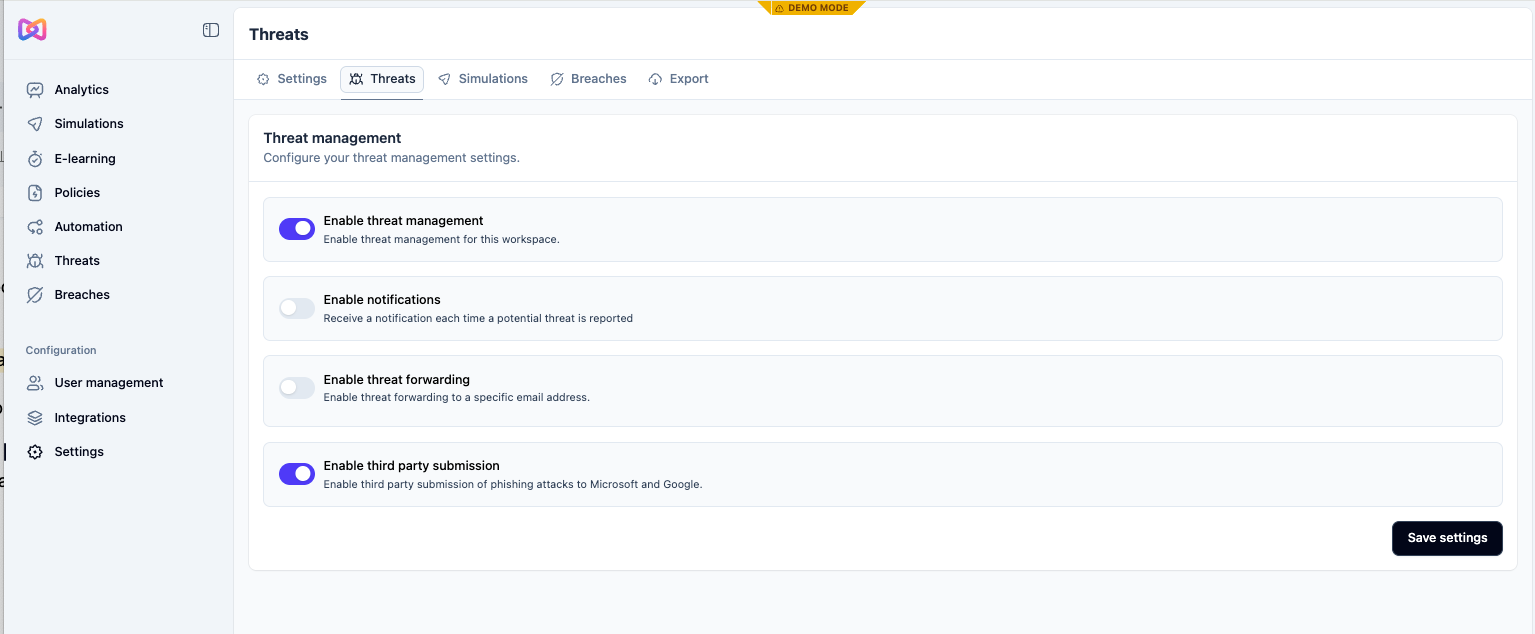
Under the top Threats tab (Available on Adapt and Defend plans)
- Enable the Threats module
- Enable notifications when there is a report and enable forwarding this to a particular email address.
- Enable third party submissions to allow us to share this anonymised threat data to Google and Microsoft so they can improve their services.
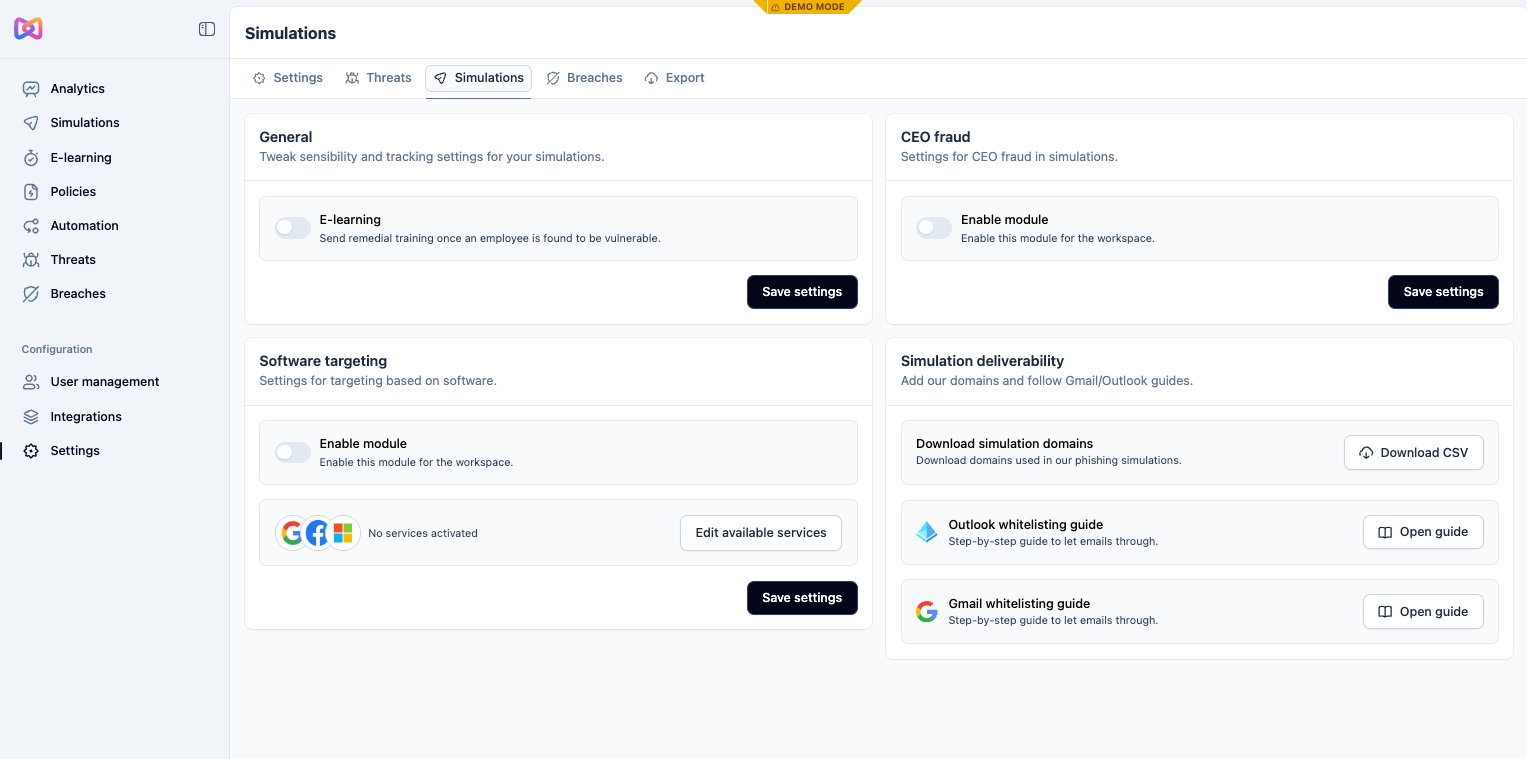
Under the top Simulations tab
- Enable E-Learning
- Toggling this feature will prompt employees who click on phishing Simulations to get a recommended course.
Tip: In order to customise the course you wish to send employees who click, we advise you to create a dedicated Training Sequence for those employees who clicked a link by selecting that trigger (see our How do I create Training? guide).
- Software targeting (Available on Adapt and Defend plans)
- Enable in order to customise your phishing emails so that they will more often be sent from selected vendors that your company uses. That will increase the difficulty of the Simulations and challenge your employees further.
- CEO Fraud (Available on Adapt and Defend plans)
- You can set up details of C-levels in your company so that Simulation emails get sent out “from them”. This will test your employees' vigilance further.
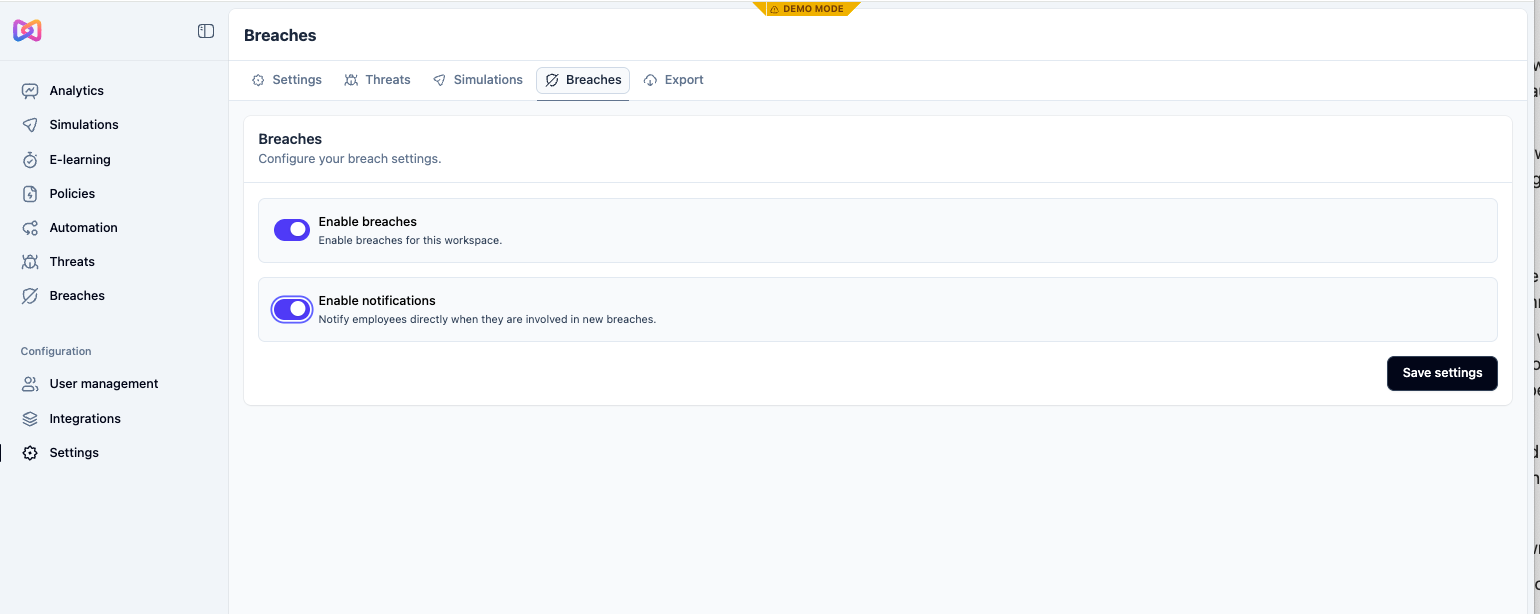
Under the top Breaches tab (Available on Understand, Adapt and Defend plans)
- Enable the module to activate that feature.
- Enable if you would like employees to be notified if their details have been identified in a data breach.
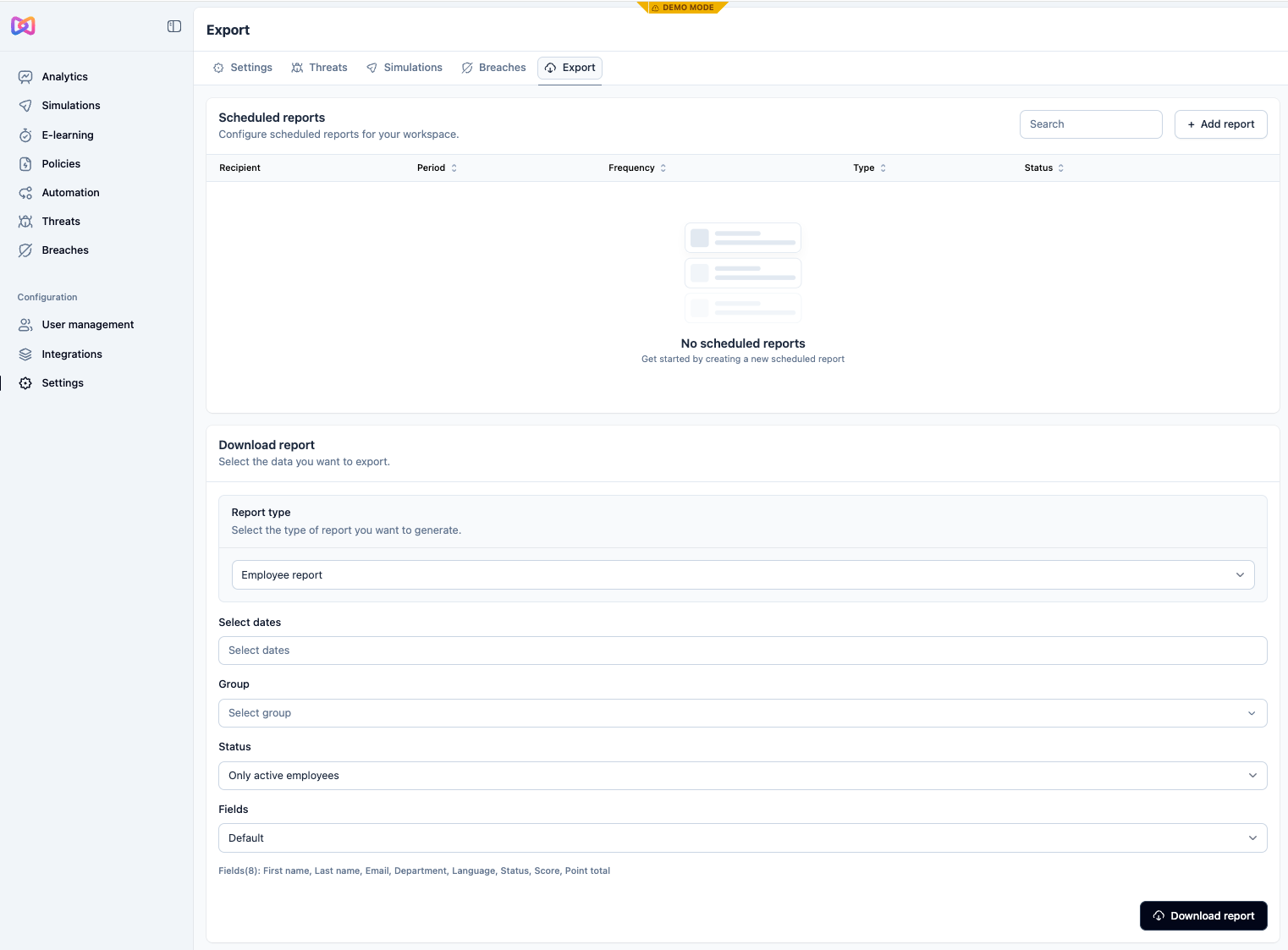
Under the top Export tab
- You can automate reports with a variety of data points at a specific cadence; including general dashboard reports and specific manager reports.
- You can also manually pull reports, selecting the data points you wish to export.